



Wireless printing has revolutionised how businesses and households manage document output, yet even the most sophisticated technologies encounter operational impediments. Apple AirPrint Issues, whilst ingeniously designed for seamless connectivity, occasionally presents connectivity tribulations that frustrate users across commercial and domestic environments. Understanding the underlying mechanics of these disruptions – and mastering their resolution – transforms printing from an exasperating ordeal into an efficient, streamlined process.
This comprehensive guide draws upon fifteen years of printing industry experience to illuminate the pathway through AirPrint’s most perplexing challenges. Whether you’re managing e-commerce operations requiring rapid label production or coordinating office documentation workflows, these troubleshooting methodologies will restore your printing capabilities swiftly and effectively.
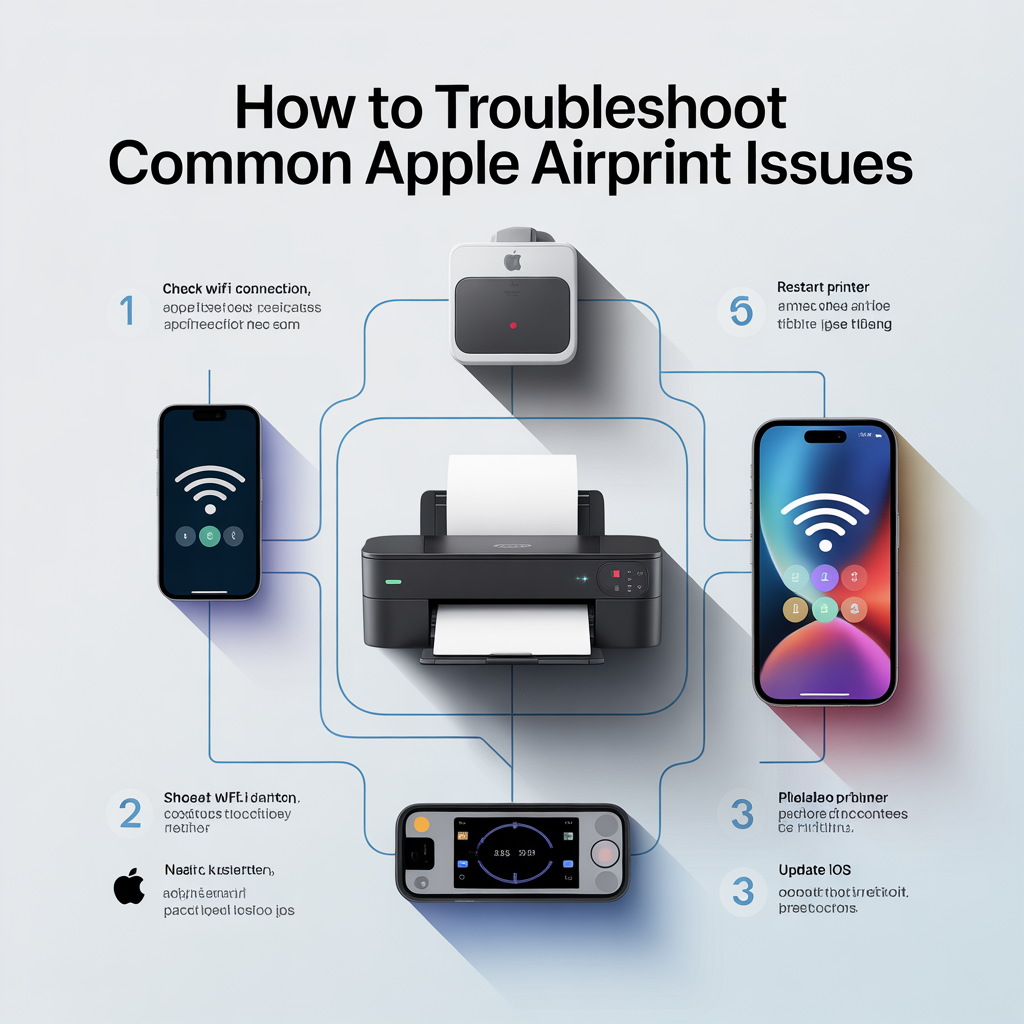
How to Troubleshoot Common Apple AirPrint Issues
Understanding AirPrint Technology and Its Architecture
AirPrint operates through Bonjour, Apple’s zero-configuration networking protocol that enables automatic discovery of printers within local networks. This technology eliminates driver installations whilst facilitating communication between iOS devices, macOS systems, and compatible printers. The protocol utilises Internet Printing Protocol (IPP) standards, transmitting print jobs through Wi-Fi networks without intermediary software requirements.
The elegance of AirPrint lies in its simplicity. Devices broadcast their presence across networks, allowing iPhones, iPads, and Mac computers to identify available printers instantaneously. However, this apparent simplicity masks complex network dependencies that, when disrupted, create printing failures requiring systematic diagnostic approaches.
Common AirPrint Issues: Identification and Classification
Printer Not Appearing in Device List
The most prevalent complaint involves printers failing to materialise within the AirPrint selection menu. This invisibility stems from various network configuration anomalies, firewall restrictions, or protocol conflicts. When your printing device remains obstinately absent, several underlying factors warrant investigation.
Network segmentation frequently culprit status in enterprise environments. VLAN configurations, guest network isolation, and subnet divisions prevent device discovery even when physical proximity suggests connectivity should succeed. Additionally, outdated firmware versions occasionally lack proper Bonjour implementation, rendering printers undetectable despite technical compatibility claims.
Connection Established But Print Jobs Fail
Paradoxically, some scenarios present printer visibility without functional output capability. Jobs queue indefinitely, error messages proliferate, or documents simply vanish into digital oblivion. These manifestations typically indicate authentication problems, IP address conflicts, or printer spooler malfunctions requiring targeted interventions.
Intermittent Connectivity and Dropped Jobs
Perhaps the most maddening scenario involves sporadic functionality—printing succeeds occasionally but fails unpredictably. This inconsistency suggests environmental interference, bandwidth congestion, or power management configurations that periodically disconnect network services. Diagnosing intermittent issues demands patience and methodical elimination of variables.
Step-by-Step Troubleshooting Methodology
Network Verification and Connectivity Assessment
1. Confirm Network Uniformity
Both your Apple device and printer must inhabit the same network infrastructure. This seems rudimentary, yet network switching—particularly in environments with multiple SSIDs—creates invisible barriers between devices.
Verification Process:
- Navigate to Settings > Wi-Fi on your iOS device
- Note the connected network name precisely
- Access your printer’s control panel or configuration page
- Verify identical network connection
- Ensure neither device connects to guest networks or isolated VLANs
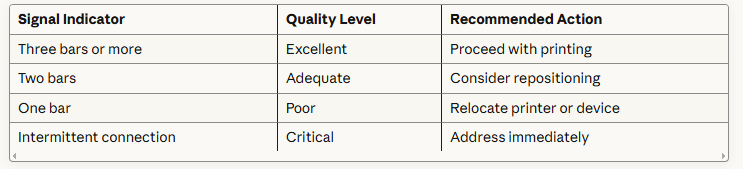
2. Evaluate Signal Strength and Proximity
Wireless transmission quality dramatically influences AirPrint reliability. Weak signals introduce packet loss, timeouts, and transmission failures that manifest as printing problems.
3. Router Positioning and Obstruction Elimination
Physical barriers—concrete walls, metal filing cabinets, microwave ovens attenuate Wi-Fi signals substantially. Position your printer within unobstructed line-of-sight to your wireless access point whenever feasible. In commercial settings with packaging operations or warehouse environments, industrial equipment may generate electromagnetic interference requiring router repositioning or additional access points.
Device-Level Troubleshooting Techniques
iOS and iPadOS Resolution Steps:
- Restart Your Apple Device: This fundamental step clears temporary memory allocations and resets network stack configurations. Press and hold the power button, slide to power off, wait thirty seconds, then restart.
- Toggle Airplane Mode: Activate Airplane Mode for ten seconds, then deactivate. This forces complete network interface reinitialisation, often resolving discovery failures.
- Forget and Rejoin Network: Navigate to Settings > Wi-Fi, tap the information icon beside your network name, select “Forget This Network,” then reconnect by entering credentials afresh. This eliminates corrupted network profiles that prevent proper Bonjour functionality.
- Reset Network Settings: For persistent issues, Settings > General > Transfer or Reset iPhone > Reset > Reset Network Settings purges all network configurations. Warning: This erases saved Wi-Fi passwords, VPN configurations, and cellular settings.
macOS Troubleshooting Protocol:
- System Preferences Investigation: Access System Preferences > Printers & Scanners. Remove the problematic printer by clicking the minus symbol, then attempt re-addition through the plus symbol. This refreshes printer driver associations.
- PRAM/NVRAM Reset: Restart your Mac whilst holding Option + Command + P + R keys simultaneously until you hear the startup chime twice. This resets printing parameters stored in non-volatile memory.
- Print System Reset: For comprehensive resolution, navigate to System Preferences > Printers & Scanners, right-click (Control-click) within the printer list area, select “Reset printing system.” This nuclear option removes all printers and associated configurations, providing a pristine starting point.
Printer-Specific Interventions
1. Firmware Updates and Compatibility Verification
Manufacturers regularly release firmware updates addressing AirPrint compatibility issues, security vulnerabilities, and performance enhancements. Access your printer manufacturer’s support website, locate your specific model, and verify current firmware version against available updates.
Update Process:
- Download firmware file to computer
- Access printer’s web interface via IP address
- Navigate to maintenance or firmware section
- Upload and install update file
- Allow complete installation without interruption
- Restart printer after successful update
2. IP Address Configuration and DHCP Assessment
Dynamic IP address allocation occasionally creates discovery problems when addresses change unexpectedly. Establishing static IP reservations ensures consistent printer identification.
Static IP Configuration:
- Access router administrative interface
- Locate DHCP reservation or address binding section
- Identify printer’s MAC address from printer network settings
- Create reservation binding MAC address to specific IP
- Save configuration and restart printer
3. Printer Power Cycle with Network Reset
Complete power cycling—not merely standby mode—resolves numerous transient issues:
- Power off printer completely
- Disconnect power cable for sixty seconds
- Simultaneously, restart your wireless router
- Reconnect printer power after router fully initialises
- Wait for complete boot sequence before testing
Advanced Network Configuration Troubleshooting
Router Settings Optimisation
Multicast and Bonjour Forwarding
AirPrint relies on multicast DNS (mDNS) packets for device discovery. Some routers disable multicast forwarding by default or implement aggressive multicast filtering that prevents AirPrint functionality.
Configuration Steps:
- Access router administrative console
- Locate wireless settings or advanced configuration
- Enable “Multicast Forwarding,” “IGMP Snooping,” or “Bonjour Service”
- Disable “AP Isolation” or “Client Isolation” features
- Save settings and restart router
Firewall and Security Protocol Adjustment
Overzealous firewall configurations block ports essential for AirPrint communication. Ensure the following ports remain accessible:
- Port 631: Internet Printing Protocol (IPP)
- Port 5353: Multicast DNS (mDNS/Bonjour)
- Port 9100: AppSocket/JetDirect printing
Create explicit firewall rules permitting bidirectional traffic on these ports between your printer’s IP address and device subnet range.
Dual-Band Router Considerations
Modern routers simultaneously broadcast 2.4 GHz and 5 GHz networks. Whilst 5 GHz offers superior throughput and reduced interference, some older AirPrint-compatible printers exclusively support 2.4 GHz connectivity.
Resolution Strategy:
- Verify printer’s supported frequency bands
- Temporarily disable 5 GHz network or create separate 2.4 GHz SSID
- Connect both printer and Apple devices to 2.4 GHz network
- Test printing functionality before re-enabling dual-band operation
Manufacturer-Specific Quirks and Workarounds
HP Printer Considerations
HP printers occasionally require the “HP Smart” application for optimal AirPrint functionality, despite AirPrint’s driver-free promise. Installing this application often resolves persistent discovery issues by registering proper mDNS service announcements.
Brother Printer Peculiarities
Brother devices sometimes ship with AirPrint functionality disabled in firmware. Access the printer’s web interface, navigate to Network > Protocol settings, and explicitly enable “AirPrint” or “Apple Wireless Printing” options.
Epson and Canon Configuration
These manufacturers frequently implement proprietary discovery protocols alongside standard AirPrint. Ensure “Network Print” or “Wireless Print” services activate in printer settings menus, as disabling these auxiliary services sometimes inadvertently disables AirPrint.
Environmental and Infrastructure Considerations
Network Congestion Management
In bustling e-commerce environments with multiple devices competing for bandwidth—point-of-sale systems, inventory scanners, label printers, office computers—network congestion delays or drops AirPrint transmissions.
Mitigation Strategies:
- Implement Quality of Service (QoS) rules prioritising printing traffic
- Schedule large data transfers outside peak operational hours
- Upgrade router hardware to support higher device counts
- Consider dedicated printing VLAN with guaranteed bandwidth allocation
Electromagnetic Interference Sources
Commercial environments harbour numerous EMI generators: fluorescent lighting ballasts, motor-driven equipment, poorly shielded power supplies, and microwave ovens. These interference sources degrade Wi-Fi performance, manifesting as printing failures.
Identification Methodology:
- Temporarily relocate printer to alternative location
- Test printing functionality in new environment
- If successful, systematically identify interfering equipment
- Shield or relocate interference sources
- Consider upgrading to 5 GHz networks less susceptible to common interference
Software-Level Interventions and Operating System Quirks
iOS and iPadOS Print Architecture
Apple’s mobile operating systems cache printer information aggressively. Occasionally, these caches become corrupted or outdated, preventing proper communication despite network connectivity.
Cache Clearing Process: Unfortunately, iOS lacks explicit printer cache clearing mechanisms. The network settings reset mentioned previously accomplishes this indirectly. For less invasive approaches, deleting and reinstalling applications that access printing functions sometimes resolves app-specific printing failures.
macOS Print Spooler Management
The CUPS (Common UNIX Printing System) daemon manages all macOS printing operations, including AirPrint. Restarting this service often resolves queue blockages and communication failures.
Terminal Commands:

For persistent issues, delete the CUPS cache directory:

Document-Specific Printing Failures
File Format Incompatibilities
Whilst AirPrint supports numerous document formats, certain file types—particularly those with embedded fonts, complex graphics, or non-standard page sizes—occasionally fail rendering.
Troubleshooting Approach:
- Attempt printing different document types to isolate format-specific issues
- Convert problematic documents to PDF format before printing
- Simplify complex documents by removing custom fonts or flattening layers
- Verify printer supports the requested paper size and orientation
Application-Specific Problems
Third-party applications implement AirPrint support with varying competence. Some applications incorporate outdated printing frameworks or non-standard implementations that clash with printer capabilities.
Resolution Steps:
- Update application to latest version addressing printing bugs
- Test printing from native Apple applications (Safari, Photos, Notes)
- Contact application developer reporting specific printing failures
- Consider alternative applications with superior printing implementations
Preventative Maintenance and Long-Term Reliability
Regular Firmware Maintenance Schedules
Establish quarterly firmware review processes for all network printing devices. Manufacturers continuously refine AirPrint implementations, address security vulnerabilities, and enhance compatibility. Proactive updates prevent issues before they disrupt operations.
Network Infrastructure Audits
Annual network assessments identify configuration drift, outdated equipment, and emerging bottlenecks. Professional network audits—particularly valuable for growing e-commerce operations – ensure printing infrastructure scales alongside business demands.
Documentation and Configuration Backups
Maintain comprehensive records of:
- Printer IP addresses and MAC addresses
- Router configuration files
- Firmware versions and update history
- Successful troubleshooting interventions
This documentation accelerates future problem resolution and facilitates knowledge transfer when personnel changes occur.
When to Seek Professional Assistance
Despite comprehensive troubleshooting, some scenarios warrant expert intervention:
Professional Support Indicators:
- Multiple printers exhibiting identical failures suggests infrastructure problems
- Intermittent issues persisting despite exhaustive troubleshooting
- Enterprise environments with complex VLAN or subnet configurations
- Printing requirements demanding guaranteed uptime and rapid resolution
Professional network consultants or manufacturer technical support teams possess diagnostic tools and specialised knowledge addressing obscure compatibility issues or infrastructure deficiencies beyond typical user capabilities.
Conclusion
AirPrint troubleshooting demands systematic methodology, environmental awareness, and patience. The wireless printing ecosystem encompasses numerous interdependent components—devices, routers, printers, applications, operating systems—each potentially contributing to communication failures. By methodically eliminating variables, verifying configurations, and implementing preventative maintenance strategies, you transform printing from an unreliable frustration into a dependable operational asset.
For e-commerce operations requiring consistent label printing, invoice generation, or packing slip production, reliable AirPrint functionality becomes mission-critical infrastructure. The troubleshooting frameworks outlined herein—refined through fifteen years of printing industry experience—provide actionable pathways restoring functionality rapidly and sustainably.
Remember: most AirPrint issues stem from network configuration oversights rather than hardware defects. Approach troubleshooting with systematic rigour, document successful interventions, and implement preventative measures ensuring long-term reliability. Your printing infrastructure will reward this diligence with years of dependable, frustration-free service.
FAQs
Why isn’t my printer showing up in the AirPrint list on my iPhone?
Your printer likely isn’t appearing because your iPhone and printer aren’t connected to the same Wi-Fi network, or your router has disabled multicast forwarding (Bonjour). Verify both devices connect to identical networks—not guest networks—and check your router settings to enable multicast DNS (mDNS) forwarding. Additionally, ensure your printer firmware supports AirPrint and is updated to the latest version, as outdated firmware often lacks proper discovery protocols.
How do I fix AirPrint not working after an iOS update?
iOS updates occasionally reset network configurations or introduce compatibility changes affecting AirPrint. First, restart both your iOS device and printer completely. Then forget your Wi-Fi network in Settings > Wi-Fi, reconnect using your password, and test printing. If problems persist, reset network settings via Settings > General > Transfer or Reset iPhone > Reset > Reset Network Settings. This clears corrupted network profiles introduced during updates, though you’ll need to re-enter Wi-Fi passwords afterwards.
Can I use AirPrint with a USB printer?
AirPrint requires network connectivity and won’t function with printers connected exclusively via USB to a single computer. However, you can enable AirPrint for USB printers by connecting them to an AirPrint-compatible router with USB printer sharing capabilities, or by sharing the printer from a Mac computer with AirPrint sharing enabled in System Preferences > Printers & Scanners. Alternatively, third-party applications like Printopia or handyPrint can add AirPrint functionality to USB printers.
Why does my AirPrint connection keep dropping during printing?
Intermittent disconnections typically result from weak Wi-Fi signals, network congestion, or aggressive router power-saving features. Position your printer closer to your wireless router, eliminating physical obstructions like walls or metal cabinets. Check for electromagnetic interference from microwaves, cordless phones, or other 2.4 GHz devices. In your router settings, disable “AP Isolation” or “Client Isolation” features, and consider assigning your printer a static IP address through DHCP reservation to prevent address changes causing disconnections.
What ports need to be open for AirPrint to work?
AirPrint requires three critical ports: Port 631 for Internet Printing Protocol (IPP), Port 5353 for multicast DNS (mDNS/Bonjour) device discovery, and Port 9100 for direct AppSocket/JetDirect printing. Ensure your router firewall allows bidirectional traffic on these ports between your printer’s IP address and your device subnet. Enterprise firewalls or security appliances may require explicit rules permitting this traffic, particularly in VLAN-segmented networks where cross-subnet multicast forwarding must be explicitly enabled.
How do I enable AirPrint on my printer?
Most modern network printers ship with AirPrint enabled by default, but older models may require manual activation. Access your printer’s web interface by entering its IP address into a browser, navigate to Network or Wireless settings, and look for options labelled “AirPrint,” “Apple Wireless Printing,” or “Bonjour.” Enable these features, save settings, and restart your printer. Some manufacturers like Brother require enabling “Network Print” services first before AirPrint becomes available. Consult your printer’s manual for model-specific instructions.
Why does AirPrint work from my iPhone but not my iPad?
When AirPrint functions on one device but not another, the non-working device likely has corrupted network settings, outdated iOS/iPadOS versions, or application-specific issues. First, ensure both devices run current software versions via Settings > General > Software Update. Restart the problematic device, toggle Airplane Mode on and off, and verify it connects to the same network as your printer. If issues persist, reset network settings on the non-functioning device, which clears corrupted configurations without affecting other settings.
Can AirPrint work across different subnets or VLANs?
Standard AirPrint relies on multicast DNS, which doesn’t traverse subnet boundaries by default. However, enterprise networks can enable cross-subnet AirPrint by configuring multicast routing (PIM or IGMP snooping) and mDNS reflectors/repeaters on network infrastructure. Alternatively, configure dedicated AirPrint gateways or use unicast DNS-SD service registration, though these require advanced networking knowledge. For most users, ensuring printers and devices share the same subnet provides simplest, most reliable connectivity.
How do I fix “No AirPrint Printers Found” error?
This error indicates your device cannot discover any AirPrint-compatible printers on your network. Verify your printer supports AirPrint by checking manufacturer specifications, ensure both printer and device connect to the same Wi-Fi network (not guest networks), and confirm your printer is powered on with active network connectivity. Check router settings to enable multicast forwarding and disable AP isolation. Update printer firmware and restart all devices—printer, router, and Apple device—in sequence, allowing each to fully initialise before testing again.
What’s the difference between AirPrint and regular wireless printing?
AirPrint is Apple’s proprietary wireless printing protocol requiring no driver installation, functioning natively within iOS and macOS through automatic printer discovery via Bonjour. Regular wireless printing typically requires manufacturer-specific drivers and applications, supports broader device compatibility including Windows and Android, and may offer additional features like advanced print settings, ink monitoring, or scanning functionality. AirPrint prioritises simplicity and convenience over comprehensive feature sets, making it ideal for straightforward document and photo printing without configuration complexity.