


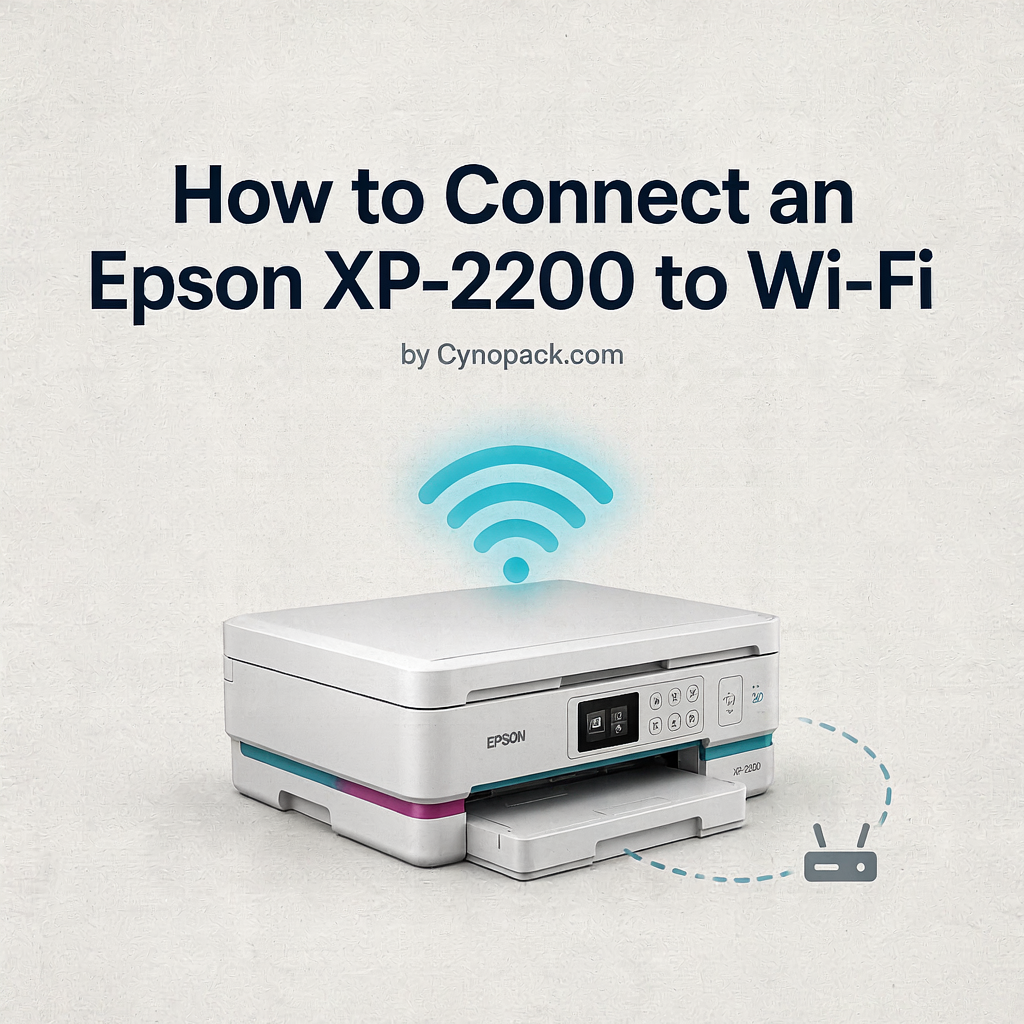
To connect an Epson XP-2200 to Wi-Fi, you can use the Epson Smart Panel app, Epson’s computer installer or your router’s WPS button. The XP-2200 does not have an LCD screen, so wireless setup is completed through its control-panel buttons and an external device.
For most homes and small offices, the recommended arrangement is to connect the printer and all computers or mobile devices to the same normal Wi-Fi router. This allows several devices to use the printer while retaining internet access.
This guide explains each connection method, how to read the network lights, how to print a connection report and what to do when the XP-2200 cannot be found.
Quick Epson XP-2200 Wi-Fi Setup
Choose the method that best matches your equipment:
| Method | What you need | Best for |
|---|---|---|
| Epson Smart Panel | iPhone, iPad or Android device | Most mobile users and first-time setup |
| Epson installer | Windows PC or Mac | Installing drivers and Wi-Fi together |
| WPS push button | Router with a physical or software WPS function | Quick setup without entering a password |
| Wi-Fi Direct | Phone, tablet or computer | Printing without a router |
| WPS PIN | Router that supports PIN registration | Alternative when push-button WPS is unavailable |
If your router does not support WPS, use Epson Smart Panel or the Epson installer. Do not press random button combinations because some controls reset network settings or enable Wi-Fi Direct instead of connecting to your router.
Before Connecting the XP-2200
Prepare the following:
- The Epson XP-2200 switched on and ready
- Your Wi-Fi network name, also called the SSID
- The correct Wi-Fi password
- A phone, tablet, Windows PC or Mac
- Access to the wireless router if using WPS
- A few sheets of A4 plain paper for a connection report
During setup:
- Place the printer reasonably close to the router
- Connect the phone or computer to the intended home or office Wi-Fi
- Temporarily disable mobile-data switching or VPN software if it interferes with local discovery
- Avoid using a guest network that prevents devices from communicating
- Make sure the printer is not showing an unresolved ink or paper error
Wi-Fi passwords are case-sensitive. Check capital letters, numbers and similar-looking characters carefully.
Understanding the XP-2200 Network Buttons and Lights
The printer’s control panel includes:
- Wi-Fi button: Used for router setup and certain wireless functions
- Network Status button: Prints reports and is used in Wi-Fi Direct or PIN combinations
- Wi-Fi light: Shows the normal router-based wireless connection
- Wi-Fi Direct light: Shows a direct printer-to-device network
In general:
| Light behaviour | Meaning |
|---|---|
| Wi-Fi light remains on | Printer is connected to a wireless router |
| Wi-Fi Direct light remains on | Wi-Fi Direct is enabled |
| Network lights flash alternately | A wireless setup or reset process is taking place |
| Network lights flash together | A connection error has occurred |
Wait for a setup process to finish before pressing another button.
Method 1: Connect the Epson XP-2200 Using Epson Smart Panel
Epson Smart Panel is usually the easiest method for a screenless printer.
Step 1: Prepare your phone or tablet
Connect the mobile device to the Wi-Fi network that you want the printer to use. Turn on Wi-Fi and Bluetooth, and allow the app the local-network, nearby-device, Bluetooth or location permissions requested by your operating system.
These permissions help the app find a nearby printer during setup. Names and permission menus vary between Android, iOS and app versions.
Step 2: Install Epson Smart Panel
Download Epson Smart Panel from the Apple App Store or Google Play. Use the official Epson app rather than an unrelated third-party printer application.
Step 3: Switch on the XP-2200
Press the printer’s power button and wait until it is ready. Keep the printer near the router and mobile device during initial setup.
Step 4: Begin printer setup
Open Epson Smart Panel. If this is the first printer, the app may automatically offer to configure a new product. Otherwise, tap the option to add a printer or the + symbol and choose the new-product setup option.
Select the Epson XP-2200 when it appears. Follow the app’s instructions to place the printer into setup mode if requested.
Step 5: Select your Wi-Fi network
Choose the normal home or office router network. Enter the Wi-Fi password exactly as configured.
Do not select an SSID beginning with a printer-specific Wi-Fi Direct name unless you deliberately want a direct connection without the router.
Step 6: Wait for the connection
Keep the app open and devices nearby while the network settings are transferred. Do not switch off the printer or router.
When setup succeeds, the normal Wi-Fi light should remain on.
Step 7: Test printing
Select the XP-2200 in Epson Smart Panel and print a simple document or photo. If it is connected but not listed, refresh the app and confirm that the mobile device is still connected to the same router network.
Epson Smart Panel Cannot Find the XP-2200
Check the following:
- The printer is switched on.
- Wi-Fi and Bluetooth are enabled on the phone.
- Epson Smart Panel has permission to access the local network and nearby devices.
- The phone is connected to the intended Wi-Fi network.
- Mobile tethering or personal hotspot is turned off.
- The printer is close enough to the router and phone.
- The app is not trying to connect to an old printer entry.
- A VPN or security app is not blocking local-device discovery.
Restart the app and mobile device if necessary. If discovery continues to fail, use the Epson computer installer or WPS method.
Method 2: Connect the XP-2200 Using WPS
WPS can connect the printer to a compatible router without typing the wireless password into an app.
Before using WPS
Confirm that the router supports WPS. Look for a button labelled WPS, an icon showing two arrows, or a WPS option in the router’s settings. Do not confuse WPS with the router’s power or reset button.
Some modern routers disable WPS for security or management reasons. If WPS is unavailable, use Smart Panel or Epson’s installer.
WPS push-button steps
- Place the XP-2200 within reliable range of the router.
- Switch on the printer and wait until it is ready.
- Press the WPS button on the router or activate WPS through its administration interface.
- Within the router’s WPS time window, hold the XP-2200 Wi-Fi button for more than five seconds.
- Release the button when the network lights begin indicating setup.
- Wait without pressing additional buttons.
- When connection succeeds, the normal Wi-Fi light remains on.
If the network lights flash together, a connection error has occurred. Press the Wi-Fi button to clear the error where appropriate, restart the router and try again with the printer closer to it.
Method 3: Connect the XP-2200 Using a Windows PC or Mac
The Epson installer can configure the network and install the correct driver and utilities.
Steps
- Connect the computer to the Wi-Fi network you want the printer to use.
- Visit Epson’s official setup or support page.
- Search for Epson XP-2200.
- Download the current setup package for your operating system.
- Run the installer.
- Accept the applicable licence terms and select the required software.
- Choose a wireless or Wi-Fi connection when prompted.
- Follow the instructions to place the printer in setup mode.
- Select the correct Wi-Fi network and enter its password if requested.
- Allow the installer to complete driver and printer registration.
- Print a test page.
Only download drivers from Epson’s official support service. Avoid driver-download websites that bundle unrelated software.
If the installer offers USB-assisted setup
Some setup processes may ask for a temporary USB connection so that network details can be transferred to the printer. Connect the cable only when the installer asks, and remove it only after the software confirms that wireless setup is complete.
The standard printer package may not include a USB cable, so check the connector type before buying one.
Method 4: Connect with Wi-Fi Direct
Wi-Fi Direct lets a phone, tablet or computer connect directly to the XP-2200 without using a router. The printer creates its own local wireless network.
This can be useful when:
- No router is available
- You need a temporary direct connection
- You are troubleshooting router discovery
- You want to print locally in a location without normal Wi-Fi
It is not usually the best permanent home setup because the connected device may lose normal internet access while joined to the printer’s network.
Enable Wi-Fi Direct on the XP-2200
- Switch on the printer and wait until it is ready.
- Hold down the Wi-Fi button.
- While holding Wi-Fi, press and hold the Network Status button.
- Continue until the two network lights flash alternately.
- Release the buttons and wait for setup to finish.
- The Wi-Fi Direct light remains on when the feature is enabled.
Once enabled, Wi-Fi Direct remains active until the network settings are restored to their defaults.
Print the Wi-Fi Direct name and password
- Load A4 plain paper.
- Hold the Network Status button for at least five seconds.
- Wait for the detailed network status sheet to print.
- Find the Wi-Fi Direct SSID and password.
A short press prints a network connection report rather than the full status sheet, and that shorter report may not include the Wi-Fi Direct password.
Connect your phone or computer
- Open the device’s Wi-Fi settings.
- Select the printer’s Wi-Fi Direct SSID shown on the status sheet.
- Enter the printed password.
- Return to Epson Smart Panel or the chosen printing app.
- Select the XP-2200 and test printing.
When finished, reconnect the phone or computer to the normal router network if you need internet access.
Wi-Fi Direct Versus Normal Wi-Fi
| Feature | Normal router Wi-Fi | Wi-Fi Direct |
|---|---|---|
| Uses home or office router | Yes | No |
| Internet remains available | Normally yes | May not be available on the connected device |
| Multiple household devices | Most convenient | More limited and manually managed |
| Remote/cloud features | More suitable | Local connection only |
| Recommended everyday setup | Yes | Usually no |
| Useful without a router | No | Yes |
For everyday use, connect the XP-2200 through the router. Use Wi-Fi Direct as a temporary or router-free alternative.
How to Print an XP-2200 Network Connection Report
A network connection report checks communication between the printer and wireless router and can display an error code with suggested corrections.
- Load A4 plain paper.
- Press the Network Status button briefly.
- Wait for the connection report to print.
- Review the result and any error code.
For more detailed information—including network addresses and Wi-Fi Direct details—hold the Network Status button for at least five seconds to print a network status sheet.
The exact report layout may vary with firmware or region.
Common Network Report Problems
Incorrect network name
The printer may be trying to join an old router or similarly named network. Repeat setup and select the correct SSID.
Incorrect Wi-Fi password
Enter the password again, observing capital letters and symbols. The router’s administration password and Wi-Fi password are not always the same.
Weak signal
Move the printer closer to the router and remove major obstacles where possible. Metal cabinets, thick walls and some electrical devices can reduce signal strength.
Devices on different networks
The printer may be on the main Wi-Fi while the phone is on a guest network, mobile hotspot or extender network with isolation enabled. Connect both to the same trusted local network.
IP address problem
For most homes, leave automatic address assignment enabled. If the printer repeatedly changes address and a computer loses it, consider a DHCP reservation in the router rather than choosing an arbitrary manual static IP.
How to Reset the XP-2200 Network Settings
Reset network settings only when you need to remove the saved router information—for example, after changing router, Wi-Fi name or password, or when repeated setup attempts have left the configuration unusable.
This reset removes wireless settings. It does not replace cartridges or fix print-quality problems.
Network reset steps
- Switch off the XP-2200 using the power button.
- Press and hold the Network Status button.
- While holding it, press the power button to switch on the printer.
- Continue holding until the network lights flash alternately.
- Release the buttons and allow the reset to finish.
- Set up Wi-Fi again using Smart Panel, the Epson installer or WPS.
Because the printer uses icons rather than text labels, confirm the Network Status button in Epson’s control-panel diagram before performing the reset.
Connecting the XP-2200 After Changing Router
The printer does not automatically know a new router name or password.
- Confirm the new Wi-Fi details.
- Remove the old XP-2200 entry from the app only if it prevents a new setup.
- Reset the printer’s network settings if normal reconfiguration fails.
- Connect the phone or computer to the new router.
- Run Smart Panel or Epson’s installer and choose new-product or reconfigure-network setup.
- Connect the printer to the new SSID.
- Re-add or rediscover the printer on each computer if necessary.
If you retained the same network name and password on the replacement router, the printer may reconnect automatically, but this is not guaranteed.
XP-2200 Connected to Wi-Fi but Will Not Print
A lit Wi-Fi indicator confirms a wireless connection but does not guarantee that the correct printer, driver or queue is being used.
Check:
- The printer has no paper or ink error.
- The computer or phone is on the same local network.
- The correct XP-2200 is selected.
- No duplicate offline printer entry is being used.
- The print queue is not paused.
- Failed jobs have been removed.
- The Epson driver or app can detect the printer.
- Guest-network or wireless-isolation settings are not blocking communication.
Restart the printer safely, then the computer or mobile device. Restart the router only if the network itself appears unstable.
For wider checks, read Epson XP-2200 Troubleshooting: Common Problems and Fixes.
XP-2200 Keeps Disconnecting from Wi-Fi
Intermittent connections may be caused by weak signal, router restarts, device isolation or changing network addresses.
- Move the printer closer to the router.
- Avoid placing it behind metal objects or close to strong sources of interference.
- Keep the printer on the normal trusted network rather than a guest network.
- Print a network report while the fault is present.
- Restart the printer and router safely.
- Update the official Epson software where appropriate.
- If a changing IP address repeatedly breaks a manually configured printer port, create a DHCP reservation in the router.
Do not assign an unused-looking static address without understanding the router’s address range. An address conflict can create another intermittent problem.
Router Cannot Find the XP-2200
Try this order:
- Move the printer near the router.
- Confirm that the router’s Wi-Fi is active.
- Restart the printer using its power button.
- Restart the router and wait for internet and Wi-Fi service to return.
- Clear any network error using the printer control indicated in the manual.
- Repeat Smart Panel or WPS setup.
- Print a network connection report.
- Reset only the printer’s network settings if necessary.
Router configuration varies. Older or screenless printers may have difficulty with certain band-steering, guest-isolation or security configurations. Consult the router and Epson documentation rather than disabling security broadly.
Phone Finds the Printer but the Computer Does Not
The phone may be using Epson Smart Panel or Wi-Fi Direct while the computer expects a router-based connection.
Check which network each device is using. If the phone is connected to the XP-2200’s direct SSID and the computer is on the home router, they are following different connection paths.
For shared everyday access:
- Connect the XP-2200 to the router.
- Reconnect the phone from Wi-Fi Direct to the router.
- Keep the computer on the same router.
- Install or refresh the Epson XP-2200 driver on the computer.
- Add the network printer again if necessary.
Computer Finds the Printer but the Phone Does Not
- Connect the phone to the same router network as the printer.
- Turn off mobile hotspot or tethering.
- Allow Epson Smart Panel access to the local network and nearby devices.
- Refresh the app’s printer list.
- Restart the app and phone.
- Print a network report to confirm the printer’s SSID.
On some phones, automatically switching to mobile data because Wi-Fi lacks internet access can interrupt Wi-Fi Direct setup.
Can You Connect the XP-2200 Without a Computer?
Yes. Use Epson Smart Panel on a compatible phone or tablet, WPS on the router, or Wi-Fi Direct. A computer is not required for these methods.
Can You Use the XP-2200 by USB Instead?
Yes, the XP-2200 can be connected to a compatible computer using a suitable USB cable and Epson software. USB can be useful when wireless printing is not required or while diagnosing a network problem.
USB printing does not connect the printer to Wi-Fi. Other wireless devices will not automatically gain access simply because one computer is connected by cable.
Frequently Asked Questions
How do I connect my Epson XP-2200 to Wi-Fi without a screen?
Use Epson Smart Panel, Epson’s computer installer or WPS. The app or installer lets you choose the network and enter its password, while WPS transfers the settings through the router.
What is the easiest XP-2200 Wi-Fi method?
Epson Smart Panel is usually easiest for mobile users. If the router supports WPS, holding the printer’s Wi-Fi button for more than five seconds after starting router WPS is a quick alternative.
Which button connects the XP-2200 to WPS?
Use the Wi-Fi button. Start WPS on the router, then hold the printer’s Wi-Fi button for more than five seconds.
How do I know when the XP-2200 is connected?
The normal Wi-Fi indicator remains on after a successful router connection. You can also print a network connection report.
Why are the XP-2200 network lights flashing together?
This indicates a wireless connection error. Clear the error, move the printer closer to the router and repeat setup. Print a connection report if it fails again.
Can I connect the XP-2200 to a phone hotspot?
Hotspot behaviour varies by phone, network and setup method. It can be unreliable because the same phone may not be able to host the network and run discovery normally. A standard wireless router or Wi-Fi Direct is generally easier.
Does the XP-2200 support Wi-Fi Direct?
Yes. Wi-Fi Direct creates a direct local connection between the printer and a phone, tablet or computer without a router.
Why does my internet stop when I use Wi-Fi Direct?
The device has joined the printer’s local network instead of the internet-connected router. Reconnect it to the normal Wi-Fi network when printing is finished.
Where is the XP-2200 Wi-Fi Direct password?
Hold the Network Status button for at least five seconds to print the detailed network status sheet, then find the Wi-Fi Direct SSID and password.
How do I print an XP-2200 network report?
Load plain paper and briefly press the Network Status button. Hold it for at least five seconds when you need the more detailed status sheet.
How do I connect the printer after changing the Wi-Fi password?
Run network setup again using Smart Panel or the Epson installer. If the old configuration prevents setup, restore the printer’s network settings and reconnect it to the new credentials.
Will resetting network settings delete other printer data?
It restores network configuration such as saved Wi-Fi details. It does not replace ink cartridges or perform printhead maintenance.
Why is the XP-2200 connected but showing offline on Windows?
Windows may be using an old or duplicate printer entry, the queue may be paused or the saved port may point to an outdated address. Select the current network printer, clear the queue and rediscover it if necessary.
Should I use a static IP address?
Most home users should leave automatic addressing enabled. If changing addresses repeatedly disrupt a manually configured port, use a DHCP reservation in the router rather than assigning an arbitrary static address at the printer.
Can several devices use the XP-2200?
Yes. Router-based Wi-Fi is the most convenient setup for several household or office devices. Install or add the printer on each device while it is connected to the same network.
Final Connection Checklist
If setup is not working, confirm that:
- The XP-2200 is powered on without another error
- The router Wi-Fi is working
- The printer is close enough to the router
- The selected SSID is correct
- The password has been entered exactly
- The phone or computer uses the same network
- Epson Smart Panel has the required permissions
- A guest network or VPN is not blocking discovery
- Wi-Fi Direct has not been mistaken for the normal router connection
- A network report has been printed and reviewed
- Network settings have been reset only if simpler checks failed
Once the normal Wi-Fi light remains on, test from one device before adding the printer to every phone and computer.
For ink, print-quality and paper problems unrelated to wireless setup, use the Epson XP-2200 troubleshooting hub. For compatible replacement cartridges, visit the Epson XP-2200 ink-cartridge page or browse Epson 604XL Pineapple ink.