
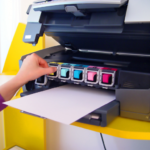
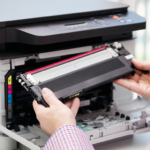

An Epson 604XL cartridge not recognised message usually means that the printer cannot communicate correctly with one of the installed cartridges. The cause may be as simple as an incorrect cartridge number, protective tape left attached or a cartridge that has not clicked fully into place.
This problem does not automatically mean that the cartridge is faulty. Before requesting a replacement, check the cartridge family, installation, electronic chip and printer status in a safe order.
This guide applies to Epson 604XL Pineapple cartridges used by selected Epson Expression Home and WorkForce printers. It explains the likely causes, the safest fixes and when to contact Cynopack for product support.
Quick fix: Confirm that the cartridge says 604 or 604XL and supports your exact printer model. Remove only the specified protective tape, reinstall the cartridge in the correct colour slot until it clicks, close the printer and allow it to complete its checks. If the error remains, perform the safe restart explained below.
Why Is My Epson 604XL Cartridge Not Recognised?
The printer identifies each cartridge through an electronic chip. A recognition error appears when it cannot read the expected information or when the information does not match the printer.
Common causes include:
- The wrong cartridge family has been ordered
- The cartridge does not support the exact printer model
- The cartridge is installed in the wrong colour slot
- It has not been pressed fully into place
- Protective packaging or tape remains attached
- The electronic chip is dirty, obstructed or damaged
- The cartridge is empty or has previously been rejected
- The printer has not completed ink charging
- A temporary printer communication error has occurred
- A cartridge-compatibility issue appeared after a software or firmware change
- The cartridge itself is faulty
Work through one cause at a time. Removing every cartridge repeatedly or running printhead cleaning will not normally solve an electronic recognition problem.
First: Confirm That Your Printer Uses Epson 604XL
Epson 604 and 604XL cartridges belong to the Pineapple family and support the following UK printer models:
| Printer range | Compatible models |
|---|---|
| Epson Expression Home | XP-2200, XP-2205, XP-3200, XP-3205, XP-4200 and XP-4205 |
| Epson WorkForce | WF-2910DWF, WF-2930DWF, WF-2935DWF and WF-2950DWF |
If your exact model is not listed, do not force the cartridge into the printer. Search using the complete printer model to identify the correct ink family.
Epson 603XL and Epson 604XL are not interchangeable. Their names and appearance may seem similar, but they use different compatibility information. Installing the wrong family can produce an incorrect, incompatible or unrecognised cartridge warning.
Read Which Printers Use Epson 604XL Ink Cartridges? for the complete model and cartridge-code guide.
Publishing note: If the compatibility article is not yet live, display its title as plain text and add the link only after publication.
Check the Epson 604XL Cartridge Code
The colour and reference must match the required 604XL cartridge:
| Colour | Short code | Full reference |
|---|---|---|
| Black | T10H1 | C13T10H14010 |
| Cyan | T10H2 | C13T10H24010 |
| Magenta | T10H3 | C13T10H34010 |
| Yellow | T10H4 | C13T10H44010 |
| Four-colour multipack | T10H6 | C13T10H64510 on the relevant pack format |
Codes can be displayed differently on packaging and retailer listings, so use three checks together:
- The family says 604 or 604XL Pineapple.
- Your exact printer model appears in the compatibility list.
- The cartridge colour matches the slot in which it will be installed.
Standard 604 and 604XL cartridges can generally be used together in the supported printers because they are capacities within the same family. Read Epson 604 vs 604XL: What Is the Difference? for a detailed comparison.
Fix 1: Make Sure the Cartridge Is in the Correct Colour Slot
The printer has separate positions for black, cyan, magenta and yellow. A correctly coded cartridge installed in the wrong slot will not operate normally.
Open the printer using its cartridge-replacement procedure and compare the colour label on the cartridge with the marking on the holder. Do not rely only on the colour of the plastic casing.
If the cartridge is in the wrong position:
- Move the holder to the replacement position using the printer controls.
- Remove the affected cartridge by pressing its release tab.
- Check the label and corresponding holder position.
- Insert it into the matching colour slot.
- Press down firmly until it clicks.
- Close the printer and allow it to check the cartridges.
Never move the cartridge holder by hand. The correct button sequence depends on the printer model.
Fix 2: Reseat a Cartridge That Is Not Fully Installed
A cartridge may look installed while sitting slightly higher than the others. If its chip does not meet the printer’s contact points correctly, the printer cannot read it.
To reseat it safely:
- Keep the printer switched on.
- Use the cartridge-replacement button or maintenance command to move the holder.
- Wait until the holder stops completely.
- Press the release tab and lift out only the affected cartridge.
- Check for remaining packaging or an obstruction in the slot.
- Reinsert the cartridge straight into the correct position.
- Press it down until you hear or feel a click.
- Compare its height with the adjacent cartridges.
- Close the printer and complete the ink-charging or checking process.
Do not use excessive force. If the cartridge will not sit correctly, remove it and recheck the code and protective packaging.
Fix 3: Remove the Correct Protective Tape
New cartridges are supplied with protective material to prevent leaks and protect components during storage. The specified tape must be removed before installation.
Check the cartridge instructions and remove only the indicated protective strip—commonly the yellow tape. If it remains attached, it can obstruct ventilation or installation and may contribute to recognition or ink-flow problems.
Do not remove additional labels, seals or plastic components unless the instructions explicitly tell you to do so. Removing the wrong seal may cause leakage or make the cartridge unusable.
If the cartridge is already installed, move the holder into its replacement position before taking it out. Never pull the holder across manually.
Fix 4: Inspect the Electronic Chip
The electronic chip allows the cartridge and printer to communicate. Fingerprints, adhesive, dirt, scratches or physical damage can prevent reliable contact.
Remove the affected cartridge and inspect the chip in good light. Look for:
- Protective film or packaging covering the chip
- Adhesive residue
- Dust or visible dirt
- Fingerprints
- Scratches, cracks or missing components
- A chip that appears loose or incorrectly positioned
Avoid touching the chip with your fingers. Do not scrape it, use an abrasive material or apply cleaning fluid. If loose dry dust is visible, use a clean, dry, lint-free material very gently and only when necessary.
Also look inside the cartridge slot without touching the printer contacts. If a contact appears bent or damaged, stop and consult a qualified printer technician or Epson support rather than trying to reshape it.
Fix 5: Identify Which Cartridge Is Causing the Error
The most recently installed cartridge is often the likely cause, but not always. A printer can report another cartridge during the same replacement process, especially if several colours are low or empty.
Use the printer’s lights, Epson Status Monitor, printer utility or on-screen message to identify the colour being reported. Write down the exact wording rather than relying on memory.
For screenless models such as the XP-2200, the ink light and cartridge-holder indicator help identify the affected cartridge. Follow the correct button sequence rather than removing all four cartridges at once.
If you are using an XP-2200, read How to Replace Ink Cartridges in an Epson XP-2200 for the model-specific procedure.
Fix 6: Allow Ink Charging to Finish
After a new cartridge is installed, the printer needs time to check the cartridge and charge the ink system. Lights may flash while this takes place.
Do not:
- Switch off the printer while the power light is flashing
- Unplug it during ink charging
- Open the cartridge compartment repeatedly
- Start another replacement procedure immediately
- Send repeated print jobs before the process finishes
On the Epson XP-2200, ink charging takes approximately two minutes. Other supported models may behave differently, so check the relevant user guide.
If the error remains after the printer has finished, reseat the affected cartridge once and then follow the safe restart procedure.
Fix 7: Perform a Safe Printer Restart
A controlled restart can clear a temporary communication error without interrupting printer maintenance.
- Cancel any pending print jobs.
- Close the scanner unit or cartridge cover fully.
- Wait until the cartridge holder stops moving.
- If a light is flashing during charging or maintenance, allow it to finish.
- Switch off the printer using its power button.
- Wait until all lights turn off.
- Disconnect the power cable from the printer or wall socket.
- Wait for approximately 60 seconds.
- Reconnect the power cable directly and securely.
- Switch the printer on using its power button.
- Wait for its startup checks to finish before printing.
Do not unplug the printer as a substitute for using its power button while it is operating. An abrupt interruption may leave the printer in an error state or interrupt ink-system maintenance.
Fix 8: Check Whether the Cartridge Is Empty or Previously Used
An electronic recognition or empty-cartridge message does not measure visible liquid directly. Printers use cartridge-chip information and estimated ink usage.
A cartridge can retain a small amount of ink when the printer requests replacement. This reserve helps protect the printing system and does not necessarily mean that the cartridge can continue printing.
If a cartridge has already been reported as empty, removing and reinstalling it will not normally restore its usable status. Do not attempt to reset, dismantle or refill a single-use compatible cartridge unless it is specifically designed and supplied for that purpose.
If the cartridge was sold as new but appears used, damaged or empty on first installation, photograph the label and report the issue to the retailer.
Could a Firmware Update Cause a Compatibility Problem?
Firmware controls how the printer operates, including communication with consumables. A compatibility problem may sometimes appear after a printer update, particularly with a third-party cartridge chip. However, firmware should not be treated as the cause of every recognition error.
First rule out the more common causes:
- Incorrect cartridge family
- Unsupported printer model
- Wrong colour position
- Cartridge not fully seated
- Protective tape left attached
- Dirty or damaged chip
- Interrupted ink charging
If the error began immediately after a firmware update and correctly installed cartridges that worked previously are now rejected, record the printer model, firmware version, update date and exact message. Give this information to the cartridge supplier.
Do not download unofficial firmware or attempt to downgrade the printer using files from an unknown source. An interrupted or unsuitable firmware process can make the printer unusable and may create security or support problems.
What Not to Do When a Cartridge Is Not Recognised
- Do not force the cartridge into the slot
- Do not move the printhead or cartridge holder manually
- Do not remove labels or seals at random
- Do not touch, scrape or sand the chip
- Do not apply water, alcohol or cleaning chemicals to electronic contacts
- Do not repeatedly switch the printer off while lights are flashing
- Do not run printhead cleaning to fix an electronic recognition error
- Do not assume that 603XL and 604XL are interchangeable
- Do not install unknown firmware or chip-reset software
- Do not discard the cartridge, packaging or order details before contacting support
Printhead cleaning addresses missing lines or blocked nozzles after a cartridge has been recognised. It does not usually make an electronically rejected cartridge become recognised.
Test the Cartridge After Reinstallation
Once the printer recognises the cartridge:
- Wait for ink charging to finish.
- Confirm that the cartridge error or ink light has cleared.
- Print a nozzle-check pattern.
- Examine each colour for complete lines.
- If lines are missing, perform one printhead-cleaning cycle.
- Print another nozzle check before repeating any maintenance.
Recognition and print quality are separate issues. A cartridge can be recognised but still require ink charging or a nozzle check before normal output resumes.
When Should You Request a Replacement?
Contact Cynopack when a new, correctly matched cartridge remains unrecognised after you have:
- Confirmed that the printer is one of the supported models
- Checked the 604XL family and colour code
- Removed the specified protective tape
- Installed the cartridge in the correct colour slot
- Pressed it down until it clicks and sits level
- Inspected the chip for visible obstruction or damage
- Allowed ink charging to finish
- Reseated the cartridge once
- Completed a safe restart
Provide the following information:
- Your order number
- Full printer model, such as XP-2200 or WF-2930DWF
- Affected cartridge colour
- Cartridge code shown on the label
- Exact error message or light pattern
- Photograph of the cartridge label and chip
- Photograph or screenshot of the printer error, where possible
- Whether other cartridges from the same order work
- Whether the error appeared before or after a printer update
Keep the cartridge and packaging until the case is resolved. The support team may recommend another test, replacement or return depending on the evidence and applicable policy.
For assistance with a Cynopack order, email cynopack@gmail.com.
Epson 604XL Product Options
If your current cartridge is empty or you need the correct replacement, Cynopack offers:
- Compatible Epson 604XL black ink cartridge
- Compatible Epson 604XL cyan ink cartridge
- Compatible Epson 604XL magenta ink cartridge
- Compatible Epson 604XL yellow ink cartridge
- Compatible Epson 604XL four-colour multipack
Browse the complete Epson 604XL Pineapple ink-cartridge category and check the model list before ordering.
Cynopack compatible cartridges are third-party products and are not manufactured, sponsored or endorsed by Epson. Epson names and references are used to identify compatibility.
Frequently Asked Questions
Why is my Epson printer not recognising a new 604XL cartridge?
The cartridge may be the wrong family, installed in the wrong colour slot, not fully seated or still covered by protective material. A dirty or damaged electronic chip, interrupted ink charging or a compatibility issue can also cause the error.
How do I reset an Epson printer after changing a 604XL cartridge?
Normally, no special reset is required. Install the cartridge correctly, close the printer and use its Stop or ink-replacement control to begin charging. If the error remains, complete the safe power restart described in this guide.
Can I use Epson 603XL instead of 604XL?
No. Epson 603XL and 604XL are different cartridge families. They are not interchangeable, even if they look similar.
Which printers accept Epson 604XL ink?
The supported models are Expression Home XP-2200, XP-2205, XP-3200, XP-3205, XP-4200 and XP-4205, plus WorkForce WF-2910DWF, WF-2930DWF, WF-2935DWF and WF-2950DWF.
Can standard 604 and 604XL cartridges be mixed?
Generally, yes. They are different capacities within the same Pineapple family. Every installed cartridge must still support the exact printer and occupy the correct colour slot.
Does removing and reinstalling the cartridge reset its ink level?
No. Reseating can restore contact when installation is the problem, but it does not refill a cartridge or normally reset a cartridge already recorded as empty.
Should I clean the cartridge chip?
First inspect it for packaging, fingerprints, dirt or damage. Avoid liquids, abrasives and scraping. If only loose dry dust is visible, use a clean, dry, lint-free material very gently.
Why is only one colour not recognised?
That cartridge may be incorrectly seated, in the wrong slot or have an obstructed or damaged chip. Check the affected colour rather than repeatedly removing every cartridge.
Will printhead cleaning fix an unrecognised cartridge?
No. Printhead cleaning addresses ink-flow and print-quality problems after cartridges are recognised. It does not normally correct an electronic cartridge communication error.
Can a firmware update cause a 604XL cartridge error?
It is possible for cartridge compatibility to change after an update, but installation and cartridge-code problems are more common. Record the firmware version and exact error, then contact the cartridge supplier. Do not attempt an unofficial downgrade.
Why is the cartridge recognised but not printing?
The ink system may still be charging, the printhead nozzles may contain air or dried ink, or the print settings may be incorrect. Wait for charging to finish, print a nozzle check and clean the printhead only if the pattern shows gaps.
How long should I wait after installing 604XL ink?
Wait until the printer’s ink-charging process and flashing lights have finished. On the XP-2200 this takes approximately two minutes; timings can vary by model.
When is a new cartridge likely to be faulty?
A fault is more likely when the correct new cartridge remains unrecognised after its tape has been removed, it has been installed in the proper slot, reseated once and tested after a safe restart—especially when another cartridge works in the same printer.
What information does Cynopack need for a replacement request?
Provide your order number, full printer model, cartridge colour and code, exact error, photographs of the label and chip, and the troubleshooting already completed.
Final Troubleshooting Checklist
Follow this order to minimise unnecessary handling:
- Check the complete printer model.
- Confirm the cartridge is 604 or 604XL Pineapple.
- Verify the colour and cartridge code.
- Check that only the specified protective tape has been removed.
- Confirm the cartridge is in the correct slot.
- Press it down until it clicks and sits level.
- Inspect the chip without touching or damaging it.
- Close the printer and allow ink charging to finish.
- Reseat only the affected cartridge once.
- Perform a safe power restart.
- Record the exact error and firmware details if the fault continues.
- Contact Cynopack with photographs and your order number.
Most Epson 604XL recognition problems can be traced to compatibility, protective packaging or incomplete installation. Checking these points methodically is safer and more effective than repeatedly removing cartridges, cleaning the printhead or changing printer software.
If you need a correctly matched replacement, shop Cynopack compatible Epson 604XL ink cartridges and confirm your complete printer model before ordering.