
Quick answer: Yes, many Epson inkjet printers can use compatible ink cartridges, provided the cartridges are specifically designed for the exact printer model and cartridge family. A cartridge that merely looks similar—or carries a nearby number – may not fit or may not be recognised.
The most important checks are the printer model, the full cartridge code and the seller’s compatibility list. Print quality, ink-level reporting and reliability can vary between products, and printer firmware can sometimes affect cartridge recognition. Epson recommends its own genuine ink and does not guarantee the quality or reliability of third-party cartridges.
This guide explains how compatible Epson ink works, how to choose the correct cartridge, how to install it safely, what to expect from print quality and how using third-party ink may relate to a printer warranty in the UK.
Can I Use Compatible Ink in an Epson Printer?
What Is a Compatible Epson Ink Cartridge?
A compatible ink cartridge is a newly manufactured third-party cartridge designed to work in selected Epson printers. It is not made, endorsed or supplied by Epson.
The term is different from several other descriptions you may see:
| Cartridge type | What it means |
|---|---|
| Genuine or original Epson cartridge | Manufactured or supplied by Epson for specified Epson printers |
| Compatible cartridge | Newly manufactured by an independent company for use with specified printers |
| Remanufactured cartridge | A previously used cartridge body that has been cleaned, refilled and prepared for reuse |
| Refilled cartridge | An existing cartridge into which replacement ink has been added |
| Counterfeit cartridge | A product unlawfully presented as genuine branded stock; this is not the same as a clearly labelled compatible product |
A legitimate compatible cartridge should be clearly described as compatible, name the printer or cartridge family it is intended to replace, and avoid suggesting that it was manufactured by Epson.
Can I Use Compatible Ink in an Epson Printer?
In practical terms, the answer is often yes, but compatibility is model-specific rather than brand-wide.
An Epson printer does not accept any cartridge simply because it says “for Epson.” The cartridge must have the correct physical shape, ink outlet, electronic chip and programming for that printer series. It must also be placed in the correct colour slot.
For example, Epson 18XL and Epson 604XL are both Epson-compatible cartridge families, but they support different groups of printers and are not interchangeable. Even codes that look similar can belong to completely different generations.
Before ordering, confirm all three of the following:
- The complete Epson printer model, such as Expression Home XP-102 rather than only “Epson XP.”
- The full cartridge number or family, including letters, numbers and any XL suffix.
- The exact printer model in the compatible cartridge seller’s supported-model list.
If any of these checks disagree, do not assume the cartridge will work.
Why the Exact Cartridge Code Matters
Cartridge numbers identify more than ink colour. They can relate to the cartridge’s casing, chip, ink capacity and intended printer generation.
Two cartridges can appear nearly identical and still be incompatible. Common mistakes include:
- Ordering Epson 603XL when the printer requires 604XL
- Assuming all cartridges called “Daisy” fit every Epson printer
- Confusing a standard cartridge with an unrelated XL family
- Buying a cartridge intended for a printer sold in another country
- Checking only the printer brand rather than the complete model
- Relying on a photograph of the cartridge instead of its printed code
The safest starting point is the code printed on the cartridge already installed in the printer. You can also consult the printer manual or Epson’s online ink finder. Then compare that information with the seller’s product page.
Standard and XL cartridges
Within a compatible cartridge family, a printer may accept both the standard and XL versions. XL generally means the cartridge contains more usable ink and has a higher estimated page yield; it does not mean that every Epson printer accepts every Epson XL cartridge.
For example, an Epson 18-compatible printer may accept 18 and 18XL cartridges from the same family. That does not make it compatible with 603XL, 604XL or another range.
Individual colours and multipacks
Many Epson inkjet printers use separate black, cyan, magenta and yellow cartridges. You can normally replace only the depleted colour, or purchase a multipack when several cartridges are low.
Check the contents carefully. A four-cartridge pack commonly includes black, cyan, magenta and yellow, but the number and type of cartridges required vary by printer.
How Compatible Cartridges Communicate with the Printer
Most modern Epson cartridges contain an electronic chip. The printer uses it to identify the cartridge, check its status and estimate ink use.
A compatible cartridge therefore needs more than the correct physical shape. Its chip must communicate appropriately with the supported printer. If it cannot, the printer may display a message such as:
- Ink cartridge not recognised
- Cartridge cannot be used
- Replace cartridge
- Non-genuine ink cartridge detected
- Ink levels cannot be displayed
A non-genuine warning does not always mean that the cartridge is faulty. Some printers ask the user to acknowledge that a third-party cartridge is installed. Read the full on-screen message and follow the available prompts rather than repeatedly removing the cartridge.
Ink-level information may also behave differently. Epson’s own documentation notes that when non-genuine cartridges are installed, cartridge status information may not be displayed. Treat any reported level as an estimate and keep a replacement available if the printer is used for important work.
How to Choose Compatible Ink Cartridges Safely
Price matters, but it should not be the only consideration. Use this checklist before buying.
1. Confirm the complete printer model
Look at the label on the front, rear or underside of the printer. Closely related models may use different cartridges, so record the complete name and number.
2. Identify the cartridge family
Check the installed cartridge, printer manual, manufacturer support page or printer software. Include all prefixes, numbers and suffixes.
3. Read the full compatibility list
Do not rely only on the product title. Your precise model should appear in the description or compatibility list.
4. Buy from an identifiable retailer
Look for clear contact information, a returns process, product support and a specific description of what is included. Avoid products presented as genuine Epson cartridges if they are actually third-party goods.
5. Check capacity and page-yield wording
Page yield is an estimate, not a promise for every customer. Actual results vary with page coverage, print mode, photographs, cleaning cycles and how often the printer is used. Compare figures only when they are measured on a reasonably similar basis.
6. Review the replacement policy
Before buying, check what the seller requires if a new cartridge is not recognised, leaks or produces unsatisfactory output. Keep the order details and packaging until the cartridge is working correctly.
Compatible vs Genuine Epson Ink
Neither option is automatically right for every user. The decision depends on printing priorities, budget, printer age and the importance of predictable colour output.
| Consideration | Compatible cartridge | Genuine Epson cartridge |
| Purchase price | Usually lower | Usually higher |
| Manufacturer | Independent supplier | Epson |
| Printer compatibility | Must be checked carefully | Specified by Epson |
| Print consistency | Varies between manufacturers and batches | Designed and tested by Epson for supported printers |
| Ink-level reporting | May be limited on some models | Normally integrated with the printer’s intended system |
| Warranty position | Check Epson’s terms; damage attributed to third-party ink may not be covered | Covered according to Epson’s applicable warranty terms |
| Best suited to | Cost-conscious everyday printing where the user accepts some variation | Users prioritising manufacturer-supported operation, colour consistency or warranty simplicity |
Compatible cartridges may be attractive for routine documents, homework, draft printing and general office use. Genuine ink can be preferable when exact colour reproduction, long-term photo display or the simplest manufacturer-support route is more important.
Will Compatible Ink Produce the Same Print Quality?
It may produce satisfactory results, but no responsible seller should claim that every compatible cartridge will perform identically to Epson ink in every printer and application.
Output depends on:
- The cartridge and ink formulation
- Printer model and printhead condition
- Paper quality and coating
- Selected media and quality settings
- Image resolution and colour profile
- Nozzle condition and alignment
- How the cartridges were transported and stored
- How frequently the printer is used
For everyday letters, forms, schoolwork and internal documents, many users choose compatible ink mainly for economy. For professional photography, colour-critical design proofs or archival work, test the ink-paper combination before committing to a full production run.
If colour accuracy matters, do not judge it from one small screen preview. Print a representative test image containing skin tones, neutral greys, dark areas and saturated colours, then allow it to dry fully under normal viewing conditions.
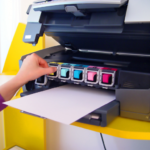
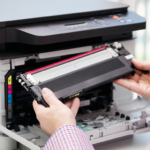
How to Install Compatible Epson Ink Cartridges
The exact procedure varies by printer, so the model’s user guide takes priority. A typical installation process is:
- Leave the printer connected to power and switch it on.
- Open the cartridge access cover.
- Use the printer’s ink button or maintenance menu to move the cartridge holder into the replacement position.
- Wait until the holder stops moving.
- Release and remove the depleted cartridge.
- Prepare the new cartridge exactly as its instructions state.
- Remove only the specified protective tape or vent seal.
- Avoid touching the chip or ink outlet.
- Insert the cartridge into the matching colour position.
- Press it down gently until it clicks and sits level.
- Close the cover and start or allow the ink-charging process.
- Do not switch off or unplug the printer while charging or while its power light is flashing.
Some black cartridges must be shaken gently before opening, while colour cartridges in the same family may not require shaking. Follow the instructions for the exact product rather than applying one rule to every Epson cartridge.
Do not remove labels or transparent seals unless the instructions specifically tell you to do so. Removing the wrong part can expose the ink outlet, cause leakage or make the cartridge unusable.
What If the Compatible Cartridge Is Not Recognised?
Work through the likely causes in a controlled order.
Confirm the number and model
Compare the new cartridge with the required family. If the code is wrong, repeated installation will not make it compatible.
Check the protective strip
Make sure the instructed transport or vent strip has been removed. Do not peel off unrelated labels.
Reinstall the cartridge
Use the printer’s normal replacement procedure, remove the affected cartridge and reinstall it in the correct colour slot. It should sit level with the others.
Inspect the chip
Look for obvious dirt, packaging residue or physical damage. Do not scrape the contacts, use abrasive materials or apply liquid directly to the cartridge. If cleaning is recommended, use a clean, dry, lint-free material and handle the cartridge carefully.
Perform a safe restart
- Switch the printer off using its power button.
- Wait until all movement and lights stop.
- Disconnect the power cable from the printer or wall socket.
- Wait approximately five minutes.
- Reconnect the power and switch the printer on.
- Allow startup to finish before checking the message.
This clears some temporary errors, but it cannot correct an incompatible or defective chip.
Test one change at a time
If several cartridges were installed together and the printer identifies a particular colour, troubleshoot that cartridge first. Avoid repeatedly swapping every cartridge, as this can introduce new seating or contact problems.
If the cartridge remains unrecognised, record the exact error, printer model, cartridge code and colour, then contact the seller. A new cartridge that is correct and properly installed may need replacement.
For a deeper diagnostic process, see Epson 18XL Cartridge Not Recognised: Causes and Fixes and add the published PrinterTeck URL to that text.
Can Firmware Updates Affect Compatible Cartridges?
Firmware is the internal software that controls the printer. Epson states that it issues firmware updates for security, performance and bug fixes, and also notes that third-party ink may affect printer functionality.
Because cartridge chips and printer software communicate electronically, a compatible cartridge that previously worked may sometimes stop being recognised after a printer change or firmware update. However, timing alone does not prove that firmware is the cause. An empty cartridge, dirty chip, incorrect code or installation problem can produce a similar message.
Before concluding that firmware is responsible:
- Confirm the full cartridge code and printer model
- Check whether only one cartridge or the entire set is affected
- Reinstall the affected cartridge correctly
- Test a known working cartridge if one is safely available
- Note the firmware version and exact error message
- Contact the cartridge supplier and, where appropriate, Epson support
Avoid downloading unofficial firmware or attempting an unsupported downgrade. An interrupted or incorrect firmware process can leave the printer unusable and may create security or support problems.
Do Compatible Ink Cartridges Void an Epson Printer Warranty?
This question needs careful wording.
Epson recommends genuine Epson ink. Its UK guidance says it cannot guarantee the quality or reliability of non-genuine ink and that damage caused by using non-genuine ink may not be covered by Epson’s warranty. Epson also warns that third-party ink may cause recognition, print-quality or hardware problems.
That is not the same as saying that the mere presence of any compatible cartridge automatically proves that every unrelated printer fault is excluded. The outcome of a warranty claim depends on the warranty terms, the nature of the fault and whether the problem is attributed to the third-party consumable.
In the UK, a manufacturer’s warranty or guarantee is also separate from statutory consumer rights against the retailer. Government guidance states that customers’ rights concerning faulty goods exist regardless of whether a warranty or guarantee applies. The facts of an individual claim still matter: damage caused by misuse or by another faulty product is not the same as an inherent fault in the printer.
Practical steps include:
- Read the warranty terms supplied with the printer
- Keep purchase receipts for the printer and cartridges
- Stop printing if a cartridge leaks or the printer behaves abnormally
- Photograph any leakage, error messages or damage before cleaning
- Do not dismantle or modify the printer
- Ask the manufacturer or retailer to explain any rejected claim in writing
- Seek independent consumer advice if there is a dispute
This section provides general information, not legal advice.
How to Maintain Print Quality with Compatible Ink
Good routine care reduces avoidable problems regardless of ink brand.
- Print a small colour page periodically so ink does not sit unused for long periods.
- Use the correct paper type and print-quality setting.
- Store unopened cartridges sealed, upright and away from heat or direct sunlight.
- Do not leave a cartridge slot empty for longer than necessary.
- Run a nozzle check before performing a cleaning cycle.
- Use printhead cleaning only when the nozzle pattern shows missing lines.
- Avoid repeated cleaning cycles, which consume ink and may not solve a damaged cartridge.
- Complete printhead alignment if text or vertical lines appear misaligned.
- Handle cartridges by their plastic body and avoid the chip and outlet.
If quality suddenly deteriorates after installing one colour, print a nozzle check. The pattern can help identify whether a specific channel is missing. Confirm the cartridge vent is open as directed and allow a newly installed cartridge time to charge before running one cleaning cycle.
When Compatible Ink May Be a Sensible Choice
Compatible ink may suit:
- Regular household document printing
- Homework and study materials
- Drafts and internal business paperwork
- Cost-conscious users with an older supported printer
- Customers who want XL capacity at a lower initial price
- Users comfortable performing basic cartridge troubleshooting
Genuine Epson ink may be more suitable when:
- The printer is used for colour-critical commercial work
- Long-term photographic display is important
- The user wants only consumables tested and supported by Epson
- The applicable extended warranty or service plan requires genuine ink
- Minimising variation is more important than reducing cartridge cost
The best approach is to match the consumable to the importance of the job rather than treating all printing as identical.
FAQs
Can I use any compatible ink cartridge in my Epson printer?
No. The cartridge must be designed for your exact Epson model and cartridge family. Check both the full printer model and cartridge code before buying.
Will my Epson printer know that the cartridge is not genuine?
Some models can display a non-genuine cartridge message or ask you to acknowledge the cartridge. Others may show limited ink-level information. The behaviour varies by printer, cartridge chip and firmware.
Can I mix compatible and genuine Epson cartridges?
Many printers can operate with a mixture of correctly matched cartridges, but recognition and ink-level reporting can vary. Every cartridge must belong to the correct family and occupy the correct colour slot.
Can I mix standard and XL Epson-compatible cartridges?
Often yes, when the standard and XL versions belong to the same cartridge family supported by the printer. Confirm this on the product compatibility list or in the printer documentation.
Why does my printer say a new compatible cartridge is empty?
The printer may not be communicating correctly with the chip, the cartridge may be incompatible or defective, or the wrong cartridge may have been replaced. Reinstall it once using the normal procedure, then contact the seller if the message remains.
Do compatible cartridges contain more ink?
Some compatible XL cartridges advertise a higher capacity than standard cartridges, but capacity and page yield vary by product. Compare clear specifications and remember that real-world yield depends on how you print.
Are compatible cartridges the same as counterfeit cartridges?
No. A compatible cartridge is openly sold as a third-party alternative. A counterfeit is improperly presented as an original branded product. Buy from a seller that describes the product accurately.
Can compatible ink block an Epson printhead?
Poor-quality ink, dried ink, infrequent use or other maintenance issues can contribute to nozzle problems. Epson warns that non-genuine ink may lead to clogging or damage, but a nozzle issue should be diagnosed rather than attributed to one cause without evidence.
Should I turn off firmware updates?
Firmware can contain security, reliability and bug fixes, so disabling updates has trade-offs. Review update information and ask the cartridge supplier about current compatibility. Do not install unofficial firmware or attempt unsupported downgrades.
What should I do if a compatible cartridge leaks?
Stop using it, switch the printer off normally and follow the printer’s safety instructions. Avoid touching ink with bare hands, photograph the issue and contact the cartridge seller. Do not continue printing or dismantle the printer.
Can I return a compatible cartridge if my printer does not recognise it?
This depends on the retailer’s policy and the circumstances. Keep the cartridge, packaging, order number and error details. Confirm first that the product was listed for your exact printer, then contact the seller for troubleshooting or replacement options.
Final Answer
You can use compatible ink cartridges in many Epson printers, but success depends on selecting a cartridge made for the exact printer model and cartridge code. Do not rely on appearance, colour or the Epson name alone.
Choose an accurately described product from a retailer that offers support, install it without touching the chip or removing the wrong seal, and keep your order details. Accept that print consistency, ink-level reporting and recognition can vary between compatible products.
Epson recommends genuine ink and says it does not guarantee third-party cartridges; damage attributed to non-genuine ink may not be covered under its warranty. UK statutory consumer rights are separate from a manufacturer warranty, so any printer fault should be considered on its actual cause and the applicable terms.
For customers using Epson 18 or 18XL Daisy cartridges, browse the Cynopack Epson 18 ink cartridge range and confirm your exact printer model before ordering.