
You’ve just refilled your Epson EcoTank, the tanks look full, and yet nothing comes out – or you’re getting streaky, faded, or wrong-colour prints. It’s one of the most frustrating printer problems out there, and it happens to thousands of EcoTank owners every month.
The good news? In the vast majority of cases, this is not a hardware failure. It’s a fixable problem that you can resolve at home in under 30 minutes.
This guide walks you through every common cause and a step-by-step fix for each one.
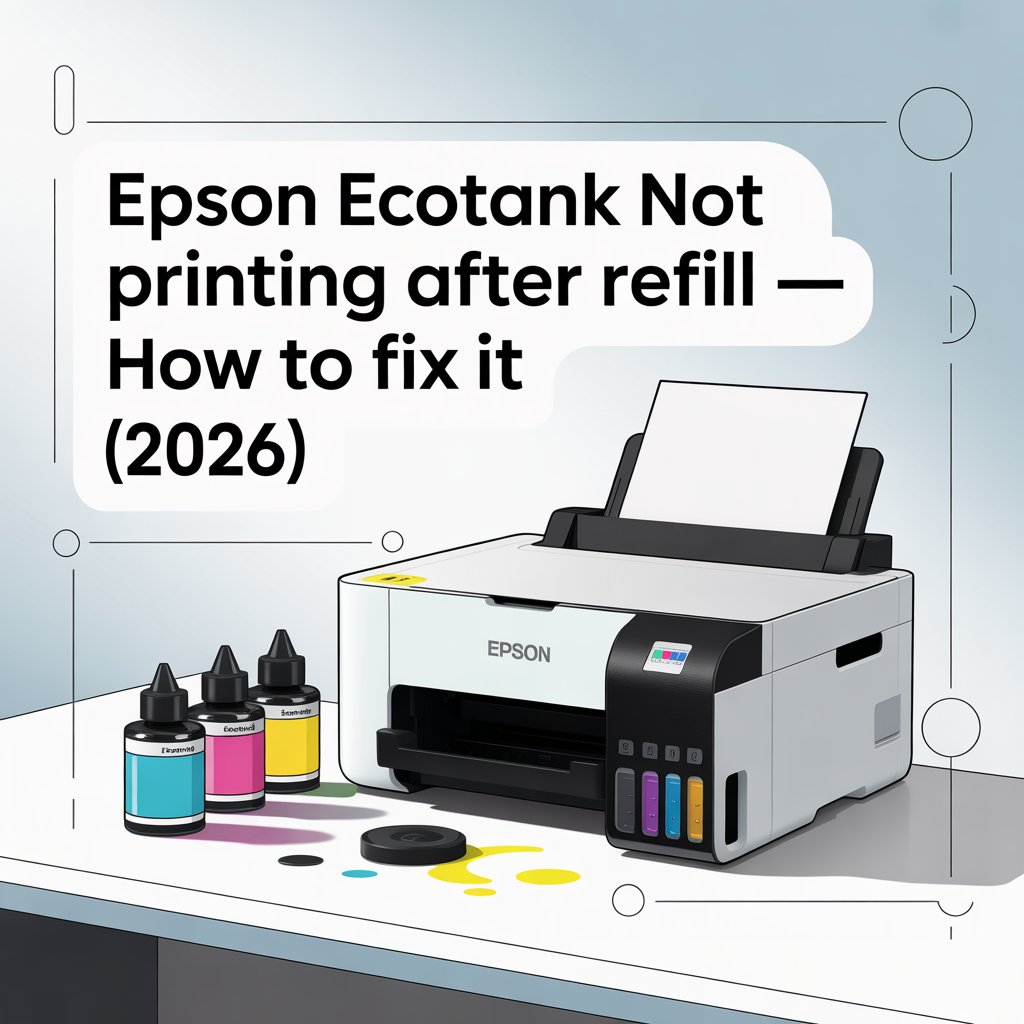
Epson EcoTank Not Printing After Refill
Why Is My Epson EcoTank Not Printing After a Refill?
There are four main reasons this happens:
1. Air bubbles trapped in the ink lines When you open an EcoTank ink port to refill, air enters the sealed ink delivery system. Those air bubbles act as a blockage, preventing ink from reaching the print head even though the tanks appear full. This is the most common cause by far.
2. Clogged or partially dried print head nozzles If your printer sat unused for a while before or after the refill, ink can partially dry inside the tiny nozzle channels. This causes missing colours, streaking, or a complete failure to print.
3. Ink filled into the wrong tank Epson EcoTank bottles are colour-coded and keyed — but mistakes happen, especially with third-party inks that don’t follow the same colour conventions. Filling cyan into the magenta tank, for example, causes incorrect colours and can trigger a sensor error.
4. Poor quality or incorrect compatible ink Not all compatible inks are equal. Lower-quality compatible ink can have the wrong viscosity or pigment density, which causes it to behave differently inside the print head — leading to clogs, faded output, or the printer refusing to flow the ink correctly. More on this below.
Step-by-Step Fix Guide
Work through these steps in order. Most people find their problem is resolved by Step 3.
Step 1 – Run a Nozzle Check First
Before doing anything else, print a nozzle check pattern. This tells you exactly which colour channels are blocked and how severe the problem is.
On your printer’s control panel:
- Press the Home button
- Go to Settings → Maintenance → Print Head Nozzle Check
- Print the pattern and examine it carefully
If you see gaps, missing lines, or faded sections in the pattern, you have a blockage. Note which colours are affected — this helps with the steps below.
If the nozzle check prints perfectly but your documents still look wrong, skip to Step 5 (driver/software settings).
Step 2 — Run 2–3 Standard Head Cleaning Cycles
A standard head cleaning pushes ink through the nozzles to clear minor blockages and air bubbles.
Via the Epson printer utility on your computer (Windows):
- Open Control Panel → Devices and Printers
- Right-click your Epson printer → Printing Preferences
- Go to the Maintenance tab → Head Cleaning
- Follow the on-screen prompts
- Wait 5 minutes between each cycle
- Run a nozzle check after each cycle to see if it has improved
Via the control panel on the printer:
- Press Home → Settings → Maintenance → Head Cleaning
- Select the colour group that’s showing gaps (or All)
- Run the cycle and wait 5 minutes
Important: Do not run more than 3 standard head cleaning cycles in a row. Running too many consecutively can overheat the print head and uses a significant amount of ink from your maintenance box. If 3 cycles haven’t cleared the problem, move to Step 3.
Step 3 — Run a Power Cleaning (for stubborn air locks)
If standard head cleaning cycles haven’t worked, you need Power Cleaning. This is a more aggressive flush designed specifically for air locks in the ink delivery system — the most common cause of EcoTank printing failure after a refill.
Before you run Power Cleaning:
- Make sure all ink tanks are at least half full. If tanks are too low, Power Cleaning will draw in more air and make the problem worse
- Check that your maintenance box is not full — Power Cleaning uses a significant amount of ink and the waste goes into the maintenance box
How to run Power Cleaning:
- On your printer’s control panel, go to Settings → Maintenance → Power Cleaning
- Follow the on-screen instructions
- The process takes several minutes — do not turn off the printer mid-cycle
- Once complete, turn the printer off and leave it for at least 12 hours before printing or running another cycle. This gives any remaining air bubbles time to settle
- After 12 hours, print a nozzle check — in most cases this will have cleared the problem
Step 4 — Check the Transportation Lock
This catches a surprising number of people. Epson EcoTank printers have a transportation lock (a small lever or switch, usually on the side or back of the printer) that locks the print head in place for safe transport.
If this lock is in the locked position, the print head cannot move and the printer will fail to print or produce very poor output.
Check your printer’s manual for the location of this switch on your specific model. Make sure it is set to the unlocked / print position before attempting to print.
Step 5 — Check Your Software and Driver Settings
If the nozzle check prints fine but your documents still look wrong or won’t print at all, the problem may be in your software settings rather than the hardware.
Check these:
- In your print dialog, make sure “Black and White” or “Grayscale” is not selected if you want colour output
- Make sure the correct Epson printer is selected as the active printer — not a generic or old driver
- Visit the Epson UK support page and download the latest driver for your specific EcoTank model. An outdated or mismatched driver can cause colour output problems
Step 6 — Manual Print Head Cleaning (last resort before a service call)
If Power Cleaning has not resolved the issue after the 12-hour wait, you may have a more severe dry clog in the print head. At this point, a manual clean may be needed.
This involves carefully applying a small amount of distilled water (not tap water — minerals in tap water can damage nozzles) to the print head using a lint-free cloth, allowing the dried ink to dissolve. This is a more involved process — search for a YouTube video specific to your EcoTank model number for a visual walkthrough, as the process varies between models.
Using the Wrong Ink? This Could Be the Cause
If you’ve worked through all the steps above and your EcoTank is still struggling, the quality of the ink used in the refill is worth examining seriously.
Lower-quality compatible inks can have the wrong viscosity – meaning they are either too thick or too thin to flow correctly through the EcoTank’s precision delivery system. They can also have lower pigment concentration, resulting in faded or dull colours even when the nozzle check appears intact.
This is a common scenario: someone buys the cheapest compatible ink they can find, refills their EcoTank, and then spends hours troubleshooting a printing problem that is actually caused by the ink itself — not by anything wrong with the printer.
Our Compatible Epson 104 Ink Bottles Multipack is formulated specifically for Epson EcoTank printers that use the 104 series. Each 70ml bottle uses water-based ink with consistent pigment density, designed to flow correctly through the EcoTank ink delivery system and deliver sharp, reliable results — exactly as a quality compatible ink should.
If you’ve been using a no-name refill kit and experiencing ongoing problems, switching to a properly formulated compatible ink is often the simplest fix of all.
Which Compatible Inks Work Reliably With Epson EcoTank?
Not all compatible inks are the same, and the EcoTank system is more sensitive to ink quality than traditional cartridge printers — because the ink flows through a longer path from tank to print head.
When choosing a compatible ink for your EcoTank, look for:
- Correct formulation for your specific series — Epson 104 ink is for EcoTank ET-series printers. Using ink designed for a different series can cause problems even if the bottles physically fit
- Water-based ink — EcoTank printers use water-based (aqueous) dye ink. Avoid any ink described as pigment-based for EcoTank colour cartridges unless your specific model calls for it
- Consistent page yield — quality compatible inks should match or come close to the OEM page yield. Epson 104 colour bottles yield up to 7,500 pages each — a good compatible ink should state a comparable figure
- UK-based seller — buying from a UK seller means faster delivery and easier returns if you ever have a problem
Browse our full range of compatible Epson ink cartridges and EcoTank bottles — all stocked and dispatched from Dundee with free UK delivery on every order.
Quick Reference — EcoTank Not Printing After Refill
| Symptom | Most Likely Cause | Fix |
|---|---|---|
| No ink coming out at all | Air lock in ink lines | Power Cleaning |
| Streaky or gapped nozzle check | Partial clog or air bubble | 2–3 Head Cleaning cycles |
| Colours faded or dull | Poor quality ink or air lock | Switch to quality compatible ink + Power Cleaning |
| Only printing in black | Software set to grayscale or wrong colour tank | Check print settings + nozzle check |
| Printer shows error after refill | Transportation lock engaged | Check and unlock transportation lever |
| Problem persists after all steps | Dried clog in print head | Manual print head cleaning |
Still Stuck?
If you’ve worked through every step in this guide and your EcoTank is still not printing correctly, it’s worth contacting Epson UK support directly – especially if your printer is still within its warranty period.
And remember: using quality compatible ink from the start is the best way to avoid these problems entirely. Our Compatible Epson 104 Ink Bottles Multipack is in stock now with free UK delivery — order before 4:45pm for same-day dispatch.