
You can check Epson printer ink levels using the printer’s control panel, EPSON Status Monitor on Windows, the Epson printer utility on macOS or the Epson Smart Panel app. The available method depends on your printer model, operating system and connection type.
If you have an Epson EcoTank printer, you should also inspect the physical ink tanks. EcoTank software may show an estimated level based on recorded usage rather than directly measuring the liquid inside each tank.
This guide explains how to check printer ink levels on an Epson printer and what to do when the reading is missing, incorrect or unchanged after replacing or refilling the ink.
How to Easily Check Ink Levels on Your Epson Printer

Quick Guide: Which Method Should You Use?
| Your Epson printer or device | Recommended method |
|---|---|
| Printer with an LCD or touchscreen | Check the Ink Levels, Supply Status or Maintenance menu |
| Windows 11 or Windows 10 computer | Open EPSON Status Monitor 3 through Printing Preferences |
| Mac | Open the printer utility or supply information available for the installed printer |
| Supported Wi-Fi printer and mobile device | Use Epson Smart Panel |
| Older supported Wi-Fi printer | Try Epson iPrint if Smart Panel is unavailable |
| EcoTank printer | Visually inspect the tanks and compare them with any displayed estimate |
| Printer without a screen | Use Epson software, a supported mobile app or the model-specific button procedure |
Menu names and features vary between models. If these general steps do not match your printer, consult the user guide for its complete model number.
Why Check Epson Ink Levels?
Checking the ink status gives you time to identify and order the correct replacement before an important print job. It can also help you determine whether faded or incomplete printing is connected to low ink or is more likely to require a nozzle check.
However, an ink indicator is not always a precise measurement. Cartridge-based printers normally estimate remaining ink from recorded usage. Cleaning cycles, initial ink charging and other maintenance operations consume ink as well as ordinary printing.
Low ink and poor print quality are also not the same thing. If the level appears adequate but pages contain gaps, streaks or missing colours, print a nozzle-check pattern before running a cleaning cycle.
Cartridge Printers and EcoTank Printers Work Differently
Epson produces cartridge-based printers and refillable EcoTank models. Their ink-monitoring methods should not be treated as interchangeable.
Cartridge-based Epson printers
Expression Home and WorkForce cartridge printers generally record estimated usage for each installed cartridge. Depending on the model, the result may appear on the printer screen, in Epson desktop software or in a compatible mobile app.
When a cartridge is recorded as expended, many Epson printers require it to be replaced before normal printing can continue. The exact behaviour is model-specific.
Epson EcoTank printers
EcoTank printers use refillable ink tanks rather than disposable cartridges. On supported models, a screen or app may display an estimated status, but the physical tank remains the important reference.
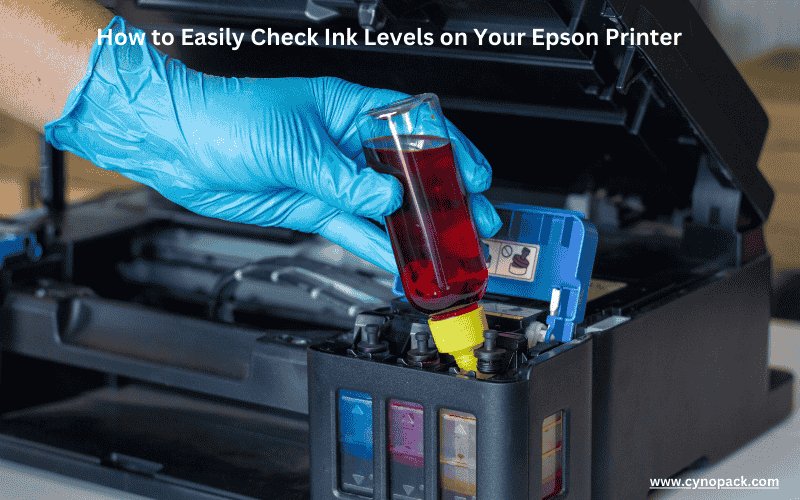
Check that every ink colour remains above the lower line marked on the tank. Do not continue using an EcoTank printer when the actual ink is below that line. Refill it using the correct ink bottle and follow the model’s reset procedure where required.
Method 1: Check Ink Levels on the Printer Screen
If your Epson printer has an LCD screen or touchscreen, this is usually the quickest method.
- Switch on the printer and allow it to become ready.
- Open Home, Menu or Settings.
- Look for Ink Levels, Supply Status, Printer Status or Maintenance.
- Select the ink or consumables option.
- Review the displayed status for black, cyan, magenta, yellow and any additional colours used by the printer.
Some models show bars or cartridge icons rather than percentages. Treat these as estimates. A warning symbol may indicate low ink, an expended cartridge, an installation problem or another cartridge error.
If no ink option appears, check the user guide. A printer without a display will normally require one of the methods below.
Method 2: Check Epson Ink Levels on Windows 11 or Windows 10
EPSON Status Monitor 3 can display the printer’s condition, estimated cartridge levels and certain error messages when the full Epson printer driver is installed.
Windows 11
- Make sure the printer is switched on and connected.
- Open Start and select Settings.
- Go to Bluetooth & devices.
- Select Printers & scanners.
- Choose your Epson printer.
- Open Printing preferences.
- Select the Maintenance or Utility tab.
- Open EPSON Status Monitor 3 or Status Monitor.
Windows 10
- Open Settings and select Devices.
- Open Printers & scanners or Devices and Printers.
- Select or right-click the Epson printer.
- Choose Printing preferences.
- Open Maintenance or Utility.
- Select EPSON Status Monitor 3.
If Printing Preferences contains only basic Windows options and no Epson maintenance tools, the computer may be using a generic driver. Search for your exact printer model on Epson Support and install the appropriate Epson software for your operating system.
Status Monitor may be unable to calculate the level accurately when a cartridge is incompatible, damaged or installed incorrectly. It may also show “Searching” when the computer cannot communicate with the printer.
Method 3: Check Epson Ink Levels on a Mac
The available route on a Mac varies according to the macOS version, printer model, connection and installed driver.
Try the following:
- Make sure the Epson printer is switched on and connected.
- Open System Settings or System Preferences.
- Select Printers & Scanners.
- Choose your Epson printer.
- Look for Options & Supplies, Supply Levels, Printer Utility or Utility.
- Open the Epson utility and view the consumable or ink status.
If no ink information is available, install the current software offered for your exact model on Epson’s support site. A printer added through AirPrint or another generic connection may not expose the same maintenance and supply information as the Epson utility.
Do not assume a missing macOS reading means the cartridges are empty. First confirm the connection, driver and printer status.
Method 4: Use the Epson Smart Panel App
Epson Smart Panel can show printer status and ink information for supported Wi-Fi printers.
- Install Epson Smart Panel from the Apple App Store or Google Play.
- Connect the phone or tablet to the same normal Wi-Fi network as the printer.
- Switch on the printer.
- Open Smart Panel and grant the permissions required for device discovery.
- Select the detected Epson printer.
- Check the ink information on the home screen or tap the printer image for additional status details.
Smart Panel does not support every Epson printer. It is mainly intended for more recent models. If your model is not listed as compatible, Epson may recommend Epson iPrint or desktop software instead.
Wi-Fi Direct can also allow a phone to communicate directly with a supported printer, but it is different from connecting both devices through your household router.
Method 5: Try Epson iPrint on Supported Older Models
Some Epson printers that do not support Smart Panel can work with Epson iPrint.
- Install Epson iPrint on your mobile device.
- Connect the mobile device and printer to the same Wi-Fi network.
- Open the app and select the printer name at the top of the screen.
- Search for and select your printer.
- Review the printer status or supply information offered for that model.
Available controls vary. If iPrint cannot find the printer, confirm that both devices use the same network and that the printer is not offline. Guest Wi-Fi networks may block communication between connected devices.
How to Check Ink on an Epson Printer Without a Screen
A screenless Epson printer can still report ink status. Use one of these options:
- EPSON Status Monitor 3 on Windows
- The Epson printer utility on a Mac
- Epson Smart Panel, if the model is supported
- Epson iPrint, where supported
- The printer’s ink or information button procedure
The warning lights on a screenless printer can indicate low ink, replacement status or a cartridge error, but the meaning of each light pattern varies. Do not guess based on the colour or flashing sequence. Find the model number on the printer label and check its user guide.
How to Check Ink Levels on an Epson EcoTank
Inspect an EcoTank printer in good lighting while it is standing level.
- Locate the transparent ink-tank windows.
- Identify the upper and lower level lines.
- Check the actual liquid level for every colour.
- Refill a tank if it has reached or fallen below the lower line, following the model’s instructions.
- If the displayed estimate does not update after refilling, complete the printer’s ink-level reset procedure where applicable.
On some models, refilling the tank does not automatically update the software estimate. Epson advises filling the relevant tanks correctly and then using the reset option specified for that printer.
Never rely solely on the app or computer reading for an EcoTank. Do not overfill a tank or mix ink bottle numbers simply because the colours appear similar.
Why Are My Epson Ink Levels Not Showing?
If the ink status is missing, work through these checks in order:
- Confirm the printer is switched on. Wait until startup and maintenance activity finishes.
- Check the connection. For network monitoring, the printer and device normally need to communicate through the same local network.
- Confirm the correct printer is selected. Old or duplicate printer entries can point to a disconnected installation.
- Clear obvious printer errors. A paper jam, open cover or cartridge fault may prevent normal status reporting.
- Install the Epson driver or utility. Generic drivers may provide printing without Epson’s full maintenance functions.
- Check each cartridge. An incorrect, damaged or poorly seated cartridge can prevent an accurate reading.
- Restart safely. Turn the printer off using its power button, wait until all lights go out and then restart it. Do not unplug it during an active maintenance cycle.
Avoid repeatedly removing cartridges or running cleaning cycles to solve a software-display problem. These actions are unlikely to repair a network or driver issue.
Why Does the Ink Level Look Incorrect?
The displayed level is usually an estimate, not a physical measurement of the ink remaining inside a cartridge. It may therefore change in steps rather than decreasing evenly.
Possible explanations include:
- Ink used during initial printer setup
- Automatic maintenance and cleaning cycles
- A cartridge that was removed and reinstalled
- A refilled cartridge whose recorded status was not reset
- An incompatible, dirty or damaged cartridge chip
- A generic or incomplete printer driver
- A communication delay between the printer and app
- An EcoTank refill completed without the required level reset
Do not open a cartridge to judge its remaining usable capacity. A cartridge may retain a small amount of ink when the printer requests replacement as part of its ink-delivery and printhead-protection system.
Compatible Epson Cartridges and Ink-Level Reporting
A correctly compatible cartridge may display an estimated ink level, but reporting varies by printer model, software and the cartridge’s electronic chip.
If a new compatible cartridge does not show a level:
- Confirm that its complete cartridge number matches the printer.
- Check that all required protective tape has been removed.
- Make sure it is installed in the correct colour position.
- Press it down until it is securely seated.
- Inspect the electronic chip without touching or scratching it.
- Close the cover and allow the printer to finish charging the ink.
- Restart the printer safely if the model instructions permit it.
Never force a cartridge into the holder. Similar Epson references, such as 603XL and 604XL, are not interchangeable merely because they look alike.
If the printer continues to report an unrecognised cartridge, record the printer model, cartridge code, colour and exact error message before contacting the retailer.
Browse Cynopack’s compatible Epson ink cartridges and confirm both the cartridge reference and printer model before ordering.
Low Ink, Ink Out and Cartridge Error Messages
These messages do not mean the same thing:
| Message | What it generally means | Recommended action |
|---|---|---|
| Ink low | The estimated supply is approaching replacement level | Obtain the correct replacement and continue only as permitted by the printer |
| Ink out or replace cartridge | The cartridge is recorded as expended | Replace the indicated cartridge according to the model instructions |
| Cartridge not recognised | The printer cannot communicate correctly with the cartridge | Check its reference, installation, protective material and chip |
| Searching or status unavailable | The software cannot obtain current printer information | Check power, connection, selected printer and driver |
| EcoTank refill warning remains | The usage estimate may not have been reset | Visually check the tanks and follow the model’s refill/reset procedure |
Managing Epson Ink Without Unnecessary Waste
- Order using the complete cartridge or ink-bottle number.
- Keep a suitable replacement available if an important deadline is approaching.
- Use draft or economy settings for internal documents when appropriate.
- Preview pages before printing to avoid layout mistakes.
- Switch the printer off with its power button rather than disconnecting the power unexpectedly.
- Print a nozzle check when output becomes streaked, faint or incomplete.
- Run printhead cleaning only when the nozzle check or printer instructions indicate it is needed.
- Avoid repeated cleaning cycles because they consume ink.
- Store unopened cartridges according to their supplied instructions.
- Visually inspect EcoTank levels and never let them remain below the lower line
Compatible Epson 604XL ink cartridges
Frequently Asked Questions
How do I check Epson printer ink levels on Windows 11?
Open Settings > Bluetooth & devices > Printers & scanners, select the Epson printer and open Printing preferences. Choose the Maintenance or Utility tab and open EPSON Status Monitor 3. If this option is missing, install the appropriate Epson driver for the exact printer model.
How do I check Epson ink levels on a Mac?
Open System Settings > Printers & Scanners, choose the printer and look for Options & Supplies, Supply Levels or Printer Utility. The route varies by macOS version and driver. Install Epson’s model-specific software if only basic printer options appear.
Can I check Epson ink levels from my phone?
Yes, if your printer is supported by Epson Smart Panel or Epson iPrint. Connect the mobile device and printer correctly, select the printer in the app and open its status information. Smart Panel is not compatible with every Epson model.
How do I check ink on an Epson printer without a screen?
Use EPSON Status Monitor on Windows, the Epson utility on macOS or a supported Epson mobile app. Warning lights can also report ink conditions, but you must check the model’s manual to interpret the exact pattern.
How do I check ink levels on an Epson EcoTank?
Visually inspect every transparent tank and ensure the liquid remains above the lower line. Treat app or screen readings as supporting estimates. If a warning remains after refilling, follow the printer’s specified ink-level reset procedure.
Why are my Epson ink levels not showing?
The printer may be offline, connected incorrectly or using a generic driver. A cartridge may also be incompatible or improperly installed. Confirm the printer connection, select the correct device, install Epson’s software and resolve any displayed printer error.
Why does my Epson printer still say low ink after replacement?
The cartridge may not be fully seated, its protective material may remain attached or the printer may not recognise its chip. Confirm the cartridge reference and colour position, reinstall it according to the manual and allow ink charging to finish.
Are Epson ink-level readings accurate?
They are useful estimates but should not be viewed as exact measurements. Printing, head cleaning and maintenance consume ink. EcoTank owners should visually inspect the tanks because the electronic estimate may not directly measure the liquid level.
Can compatible cartridges display ink levels?
Many correctly compatible cartridges can report an estimated status, but this depends on the printer, software and cartridge chip. Always choose the correct reference and contact the retailer if a new cartridge remains unrecognised after proper installation.
Can I continue printing when an Epson cartridge is low?
You can normally continue while the printer reports “low,” but obtain a replacement soon. When it reports that a cartridge is expended, many models will stop until that cartridge is replaced. Follow the instructions for your exact model.
Does printhead cleaning use ink?
Yes. A cleaning cycle passes ink through the printhead and also contributes to maintenance-box or waste-ink usage. Run a nozzle check first and clean only when necessary rather than on a fixed weekly schedule.
Why does my EcoTank still show low ink after refilling?
Adding ink may not automatically change the displayed estimate. Confirm that the correct tanks were filled to the required level and use the printer’s Reset Ink Levels procedure where supported. The precise menu sequence varies by model.
Final Thoughts
The easiest way to check ink levels on an Epson printer depends on the model. Use the printer screen where available, EPSON Status Monitor on Windows, the Epson utility on a Mac or Smart Panel on a compatible mobile setup.
For EcoTank printers, inspect the tanks themselves rather than relying only on an electronic estimate. If a level is missing or appears incorrect, check the connection, Epson driver and cartridge installation before running maintenance routines.
When replacement ink is required, match both the complete ink reference and printer model. You can explore Cynopack’s range of compatible Epson ink cartridges for supported Expression Home, WorkForce and other cartridge-based Epson printers.